Imagine arriving home, hands full of groceries, kids, or your daily essentials, and your front door simply unlocks as you approach. No fumbling for keys, no awkward pauses – just seamless entry into your home. This isn’t a scene from a futuristic movie; it’s the convenience offered by smart lock auto-unlock geofencing, a feature designed to make your daily routine smoother and more secure.
This comprehensive guide will walk you through everything you need to know about setting up auto-unlock geofencing on your phone. We’ll cover the essential preparations, a step-by-step setup process, tips for optimizing its performance, enhancing security, and even troubleshooting common issues. Get ready to transform your entryway experience and enjoy the true potential of your smart lock.
What is Smart Lock Geofencing and Why You Need It?
Smart lock geofencing is a technology that uses your smartphone’s location to automatically unlock your door when you arrive home and sometimes lock it when you leave. At its core, geofencing creates a virtual perimeter, or “geofence,” around a specific geographical area, typically your home. Your smartphone’s GPS constantly monitors your location relative to this defined boundary.
When your phone crosses the geofence, your smart lock app recognizes your arrival. Many systems employ a two-stage security measure: first, detecting your entry into the broader geofence zone using GPS, and then confirming your close proximity to the lock itself via Bluetooth before initiating the unlock command. This intelligent combination ensures both convenience and a crucial layer of security, preventing accidental unlocks while you’re simply moving around your neighborhood. The primary benefit of this feature is unparalleled convenience, offering hands-free access to your home without ever needing to touch a key or your phone.
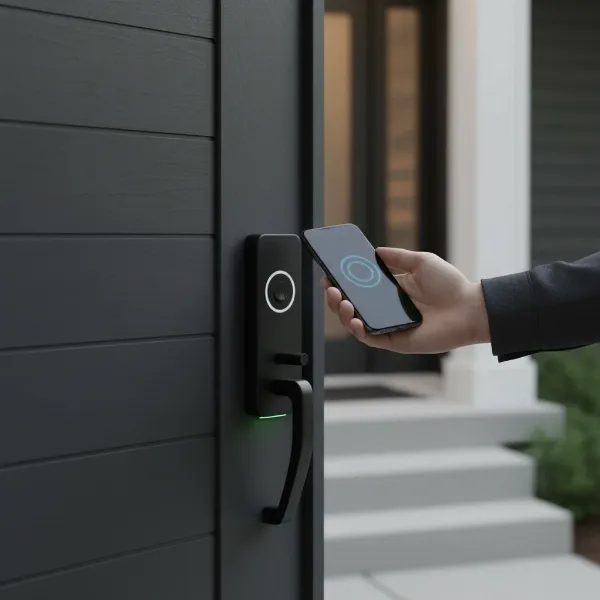 Person approaching a front door, smart lock on door, phone in hand, door unlocking automatically.
Essential Preparations: Configuring Your Phone and Smart Lock
Before diving into the setup process, ensuring your smartphone and smart lock are properly configured is crucial for a smooth and reliable auto-unlock experience. These foundational steps lay the groundwork for geofencing to function optimally.
Phone Settings Checklist
Your phone’s settings play a critical role in the accuracy and responsiveness of geofencing. Neglecting these can lead to unreliable performance or even the feature failing to work altogether.
- Location Services: Always On: For your smart lock app to continuously monitor your position relative to your home, its access to your phone’s location services must be set to “Always On.” If it’s set to “While Using the App,” the geofencing feature will likely not work in the background.
- Precise Location: Enabled: On iOS devices, especially iOS 14 and newer, enabling “Precise Location” for your smart lock app provides the most accurate positional data, which is vital for precise geofencing triggers.
- Background App Refresh: Enabled (iOS): This setting allows your smart lock app to run in the background, ensuring it can track your location and communicate with your lock even when you’re not actively using it.
- Battery Optimization: Disabled for Smart Lock App (Android): Android’s aggressive battery optimization can sometimes restrict apps from running in the background, impacting geofencing. Exclude your smart lock app from battery optimization to ensure uninterrupted operation.
- Wi-Fi and Mobile Data: Active: A stable internet connection (either Wi-Fi or cellular data) is necessary for your phone to communicate effectively with the smart lock app’s servers and sometimes with the lock itself, especially when establishing initial location or sending notifications.
- App Status: Logged In: Ensure you are consistently logged into your smart lock’s companion app. The auto-unlock feature relies on your active session to authorize commands.
|
Our Picks for the Best Smart Lock in 2026
As an Amazon Associate I earn from qualifying purchases.
|
||
| Num | Product | Action |
|---|---|---|
| 1 | eufy Security Smart Lock C220, Fingerprint Keyless Entry Door Lock, Built-in Wi-Fi, App Remote Control, Front Door Smart Deadbolt, IP53 Waterproof, 8-Months Battery, Nickel |

|
| 2 | TEEHO TE001 Keyless Entry Door Lock with Keypad - Smart Deadbolt Lock for Front Door with 2 Keys - Auto Lock - Easy Installation - Oil-Rubbed Bronze |
|
| 3 | ULTRALOQ U-Bolt Pro WiFi Smart Lock with Door Sensor, 8-in-1 Keyless Entry Door Lock with Fingerprint ID, App Remote Control, Built-in WiFi Keypad Deadbolt, Auto Unlock, IP65 Waterproof, Easy Install |
|
| 4 | Electronic Passwords Keyless Entry Door Locks Smart Deadbolt Metal Lock Auto Time Delay Locking Secure Durable Low Battery Alert Type-C Port for Emergency Charging |
|
| 5 | Philips Wi-Fi Door Lock, WiFi Smart Lock Keyless Entry Deadbolt for Front Door, Remote Control, Built-in WiFi, APP Fingerprint Passcode Unlock, Auto Locking |
|
| 6 | Philips Wi-Fi Door Lock, WiFi Smart Lock Keyless Entry Deadbolt for Front Door, Compatible with Alexa & Google Assistant, Remote Control, Built-in WiFi, APP Fingerprint Passcode Unlock, Auto Locking |
|
| 7 | Schlage Encode Smart WiFi Deadbolt Lock for Front Door - Keyless Entry with App or Touchscreen - Works with Alexa, Hey Google, & Airbnb - Create Codes for Guests - Matte Black |
|
| 8 | TEEHO TE001 Keyless Entry Door Lock with Keypad - Smart Deadbolt Lock for Front Door with 2 Keys - Auto Lock - Easy Installation - Matte Black |
|
| 9 | eufy Security Smart Lock C220, Fingerprint Keyless Entry Door Lock, Built-in Wi-Fi, App Remote Control, Front Door Smart Lock Deadbolt, 8Months Battery, Reliable Power, IP53 Waterproof, BHMA Grade 3 |
|
| 10 | TEEHO TE001 Keyless Entry Door Lock with Keypad - Smart Deadbolt Lock for Front Door with 2 Keys - Auto Lock - Easy Installation - Satin Nickel |
|
Smart Lock Readiness
Beyond your phone, your smart lock also needs to be in prime condition for geofencing.
- App Installation & Login: Make sure you have the latest version of your smart lock’s dedicated mobile application installed on your phone and that you are logged into your account.
- Firmware Updates: Always keep your smart lock’s firmware updated to the latest version. Manufacturers frequently release updates that improve performance, add features, and enhance security, which can directly impact geofencing reliability.
- Battery Status: A low battery in your smart lock can impair its communication capabilities, leading to delays or failures in auto-unlock. Check the battery level periodically and replace them as needed.
Step-by-Step: Enabling Auto-Unlock Geofencing
Once your phone and smart lock are prepared, setting up auto-unlock geofencing is a straightforward process within your smart lock’s app. While exact steps may vary slightly between brands, the general flow remains consistent.
General Setup Process
Here’s a generalized sequence of steps you’ll typically follow to enable the feature:
- Open Your Smart Lock App: Launch the dedicated application for your smart lock on your smartphone.
- Navigate to Lock Settings: Find your specific lock within the app and access its settings or features menu. Look for options like “Auto Unlock,” “Auto Entry,” or “Geofencing.”
- Enable the Feature: Toggle on the auto-unlock or geofencing option. The app might prompt you through a brief tutorial or ask for location permissions again if you haven’t granted them correctly.
- Define Your Home Boundary: The app will usually display a map with your current location and a shaded circle representing the geofence boundary around your home. This is the area your phone needs to leave and re-enter to trigger the auto-unlock.
- Tip: Many apps recommend performing this step while standing close to your actual smart lock to accurately pinpoint its location on the map. Verify that your home address is correctly identified.
- Confirm and Save: Once you’re satisfied with the geofence area, confirm your settings and save the changes within the app.
Customizing Your Geofence
While many smart lock apps set a default geofence radius that isn’t directly adjustable by the user (often for security and reliability reasons), understanding its mechanics can help you optimize its performance.
- Understanding the Radius: Geofences typically range from a few meters to hundreds of meters. For instance, some systems might use a 200-meter radius to detect your entry into the area, while the final unlock only happens within a 15-foot Bluetooth range of your door. This layered approach enhances security.
- Setting Trigger Zones for Optimal Performance: The system is designed to trigger auto-unlock only after you’ve left the defined geofence zone and then re-entered it. This prevents accidental unlocks when you’re just moving around inside or near your home. Ensure the “home boundary” effectively encapsulates your property, with enough buffer so that daily movements within your home don’t inadvertently trigger the “leaving” or “entering” actions.
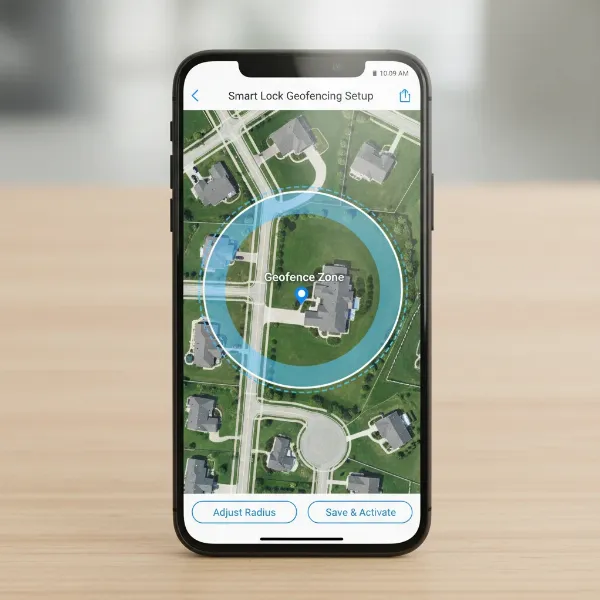 Smartphone screen displaying a map with a virtual geofence circle around a home location.
Optimizing Performance and Enhancing Security
Achieving seamless and secure auto-unlock geofencing involves more than just initial setup; it requires ongoing optimization and adherence to security best practices.
Fine-Tuning for Reliability
A perfectly working auto-unlock system offers immense convenience. Here’s how to ensure it remains reliable:
- Avoiding False Triggers: To prevent unintended unlocks, most smart lock systems require your phone to exit the geofence boundary and then re-enter it to activate the auto-unlock function. This design feature prevents the lock from constantly trying to unlock if you’re just moving around your house or simply passing by your door. If you experience false unlocks, check your geofence boundary settings within the app to ensure it’s accurately placed and the radius is appropriate for your property.
- Impact of Multi-Story Buildings: Geofencing relies on your phone’s GPS, which primarily detects your horizontal location. In multi-story buildings, this can lead to accuracy challenges, as the system might not differentiate between floors. If you live in an apartment building, you might need to adjust your expectations or rely more on the Bluetooth proximity trigger for the final unlock.
- Consistent Connectivity: Ensure your phone has a strong and consistent connection, either through Wi-Fi at home or mobile data when you’re away. Intermittent connectivity can delay or prevent the geofence from accurately tracking your movements.
Bolstering Your Security
While convenient, auto-unlock should never compromise your home’s security.
- Pairing with Auto-Lock: For maximum security, it is highly recommended to pair auto-unlock geofencing with an “auto-lock by duration” feature. This ensures that even if the door unlocks as you approach, it will automatically re-lock after a set period (e.g., 30 seconds to 5 minutes) if not opened, or after you’ve entered and closed the door. This dual functionality provides an extra layer of protection.
- Data Privacy: Reputable smart lock manufacturers prioritize user privacy. Many systems are designed so that your precise location data is processed locally on your phone and is not transmitted to their servers. Always review the privacy policy of your smart lock provider to understand how your data is handled. For instance, some systems store the lock’s location only on your phone, requiring a re-configuration if you get a new device.
- User Authentication for App: Enable all available security features within your smart lock app, such as two-factor authentication (2FA) and biometric login (fingerprint or face ID). This protects your smart lock controls even if your phone falls into the wrong hands.
Troubleshooting Common Geofencing Issues
Even with careful setup, smart lock geofencing can sometimes encounter hiccups. Here are solutions to common problems.
“My Lock Isn’t Unlocking Automatically!”
If your smart lock isn’t performing its auto-unlock function, systematically check these points:
- Revisit Phone Settings: This is the most frequent culprit. Double-check that Location Services is set to “Always On” and “Precise Location” is enabled for your smart lock app. On Android, ensure battery optimization is disabled for the app, and on iOS, verify Background App Refresh is active.
- Check App/Lock Firmware: Ensure both your smart lock app and the lock’s firmware are updated to their latest versions. Outdated software can lead to compatibility issues or bugs.
- Verify Home Boundary: Open your smart lock app and navigate to the auto-unlock settings. Confirm that your home’s geofence boundary is correctly set on the map. If it appears inaccurate, try re-calibrating it by standing close to your lock and re-saving the location.
- Battery Check: Low battery in your smart lock or phone can severely impact performance. Replace your lock’s batteries if they’re low, and ensure your phone is adequately charged.
“Delayed Unlocks or False Triggers”
These issues indicate that the geofencing system isn’t responding as precisely as it should.
- Power-Saving Modes: Many phones have aggressive power-saving modes that can restrict background app activity, leading to delayed geofence triggers. Temporarily disable these features to see if it improves performance.
- Wi-Fi/Cellular Signal Strength: Weak or intermittent Wi-Fi at home or poor cellular data signal while approaching your home can affect GPS accuracy and app communication. Ensure strong network connectivity for reliable performance. Public or shared Wi-Fi networks can also have restrictions that impact accuracy.
- Geofence Zone Adjustment: If you’re experiencing false triggers while at home, your geofence might be too small or inaccurately placed. Ensure you leave a sufficient buffer when defining your home boundary so that casual movements within your property don’t cause the system to think you’ve left. Conversely, if unlocks are delayed, a slightly larger initial detection zone might help, though direct radius adjustment is often not an option.
- Restart App/Phone: A simple restart of the smart lock app or your entire phone can often resolve temporary software glitches affecting location services.
Integrating Geofencing into Your Smart Home Ecosystem
The power of geofencing extends far beyond simply unlocking your door. By integrating it with your broader smart home ecosystem, you can create sophisticated automations that respond to your arrival and departure, enhancing both convenience and energy efficiency.
Consider these scenarios to leverage geofencing for a truly smart home:
- “Welcome Home” Scenes: As your smart lock detects your approach and unlocks, it can simultaneously trigger a “Welcome Home” scene. This might involve:
- Lights: Turning on specific lights in your entryway, living room, or kitchen.
- Thermostat: Adjusting your smart thermostat to your preferred comfort temperature.
- Music: Starting your favorite playlist on smart speakers.
- “Goodbye” Routines: When you leave the geofence, your smart home can automatically transition into an “Away” mode:
- Lights: Turning off all lights in the house.
- Thermostat: Adjusting the temperature to an energy-saving setting.
- Security Cameras: Activating motion detection and recording on your smart security cameras.
- Other Locks: Ensuring all other smart locks or smart plugs for appliances are secured or powered off.
By connecting your smart lock’s geofencing capabilities with other smart devices through platforms like Google Home, Apple HomeKit, or Amazon Alexa, you can orchestrate a truly responsive and automated environment that anticipates your needs and enhances your lifestyle.
Conclusion
Smart lock auto-unlock geofencing is a transformative feature that elevates the convenience and security of your home. By leveraging your phone’s location, it provides a seamless, hands-free entry experience, eliminating the daily hassle of fumbling for keys. While the setup requires attention to detail, particularly with your phone’s location settings and app configurations, the effort pays off in daily ease.
Beyond simple unlocking, geofencing can become the cornerstone of advanced smart home automations, ensuring your home is always welcoming when you arrive and secure when you depart. Embrace this technology to simplify your life and enjoy a truly connected home. Are you ready to experience the effortless entry that smart lock geofencing offers?
Frequently Asked Questions
How accurate is smart lock geofencing?
Smart lock geofencing accuracy relies on your phone’s GPS and network connectivity. While generally reliable, factors like multi-story buildings, dense urban areas, or weak signals can affect precision. Many systems combine GPS with closer-range Bluetooth detection for a more accurate and secure final unlock.
Will auto-unlock geofencing drain my phone’s battery faster?
Yes, continuous use of location services for geofencing can consume more battery than usual. However, most smart lock apps are designed to be energy-efficient, using optimized algorithms to minimize drain. Ensuring your phone’s battery optimization settings are correctly configured for the app can help manage this.
Can I set up auto-unlock for multiple users in my household?
Absolutely. Auto-unlock geofencing is typically configured individually on each user’s smartphone. Each person wishing to use the feature must install the smart lock app on their device, log in, and enable the auto-unlock settings according to the setup instructions.
What if my phone battery dies while I’m away from home?
If your phone’s battery dies, the auto-unlock geofencing feature will not work. It’s crucial to always have a backup entry method, such as a traditional key, a keypad code for your smart lock, or a secondary smart entry method like a fingerprint or fob.
Is it safe to use auto-unlock geofencing with my smart lock?
Smart lock manufacturers incorporate multiple security layers to make auto-unlock safe. This often includes requiring you to leave and re-enter a geofenced zone and confirming proximity via Bluetooth before unlocking. Pairing it with an auto-lock feature further enhances security. Always choose reputable brands and keep firmware updated.
Why is my smart lock unlocking when I’m still inside my home?
If your lock is unlocking while you’re still home, your geofence boundary might be too small or inaccurately defined. The system relies on you leaving the boundary and re-entering it to trigger an unlock. Review your app’s settings and adjust the home boundary to prevent such false triggers.
Can I customize the geofence radius for my smart lock?
For most smart locks, the exact geofence radius is pre-determined by the manufacturer for optimal performance and security, and users cannot directly adjust its size. However, you can typically confirm or refine the central point of the geofence by accurately setting your home’s location within the app.