In a world increasingly reliant on digital connections, the apps on our smartphones and devices are gateways to our most personal and sensitive information. From banking and social media to email and online shopping, these applications hold the keys to our digital lives. While strong passwords are a foundational layer of defense, they are no longer enough to safeguard against the sophisticated threats lurking online. This is where Two-Factor Authentication (2FA) steps in, providing a critical extra layer of security that can make all the difference.
What is Two-Factor Authentication (2FA) and Why is it Essential?
Two-Factor Authentication, often abbreviated as 2FA, is a security process that requires users to verify their identity using two distinct authentication factors before granting access to an account. Instead of simply relying on “something you know” (like a password), 2FA adds a second verification step, typically “something you have” (like your phone or a hardware key) or “something you are” (like a fingerprint). This dual-layer approach significantly strengthens your defenses against unauthorized access.
The core principle behind 2FA is simple: even if a cybercriminal manages to steal or guess your password, they still won’t be able to access your account without the second factor. This makes it exponentially harder for attackers to compromise your digital assets. Implementing 2FA can block a staggering percentage of automated attacks, with some reports indicating it stops up to 99.9% of such attempts, and also significantly thwarts phishing and targeted attacks. It actively involves you in your own security, prompting you to confirm login attempts and making you aware of any suspicious activity.
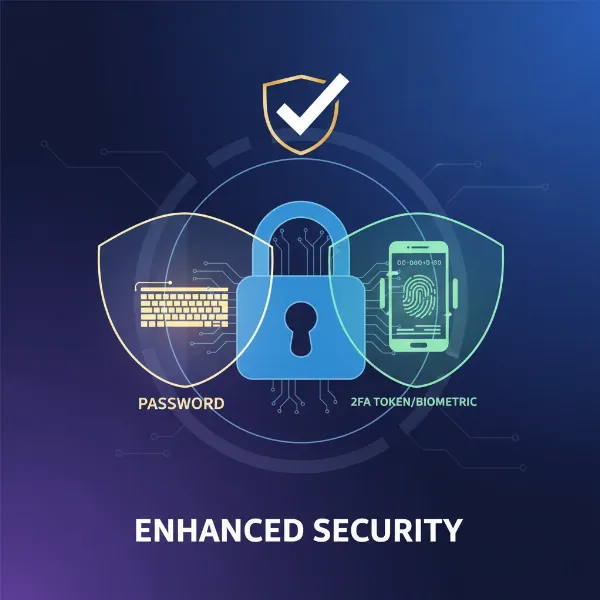 Illustration of two-factor authentication showing a lock secured by two distinct layers.
The benefits of enabling 2FA extend across various aspects of your digital life:
- Enhanced Security: It acts as a powerful deterrent against hackers who might obtain your passwords through data breaches, phishing scams, or brute-force attacks.
- Protection Against Identity Theft and Fraud: By securing access to your email, banking, and social media apps, 2FA helps prevent malicious actors from impersonating you, committing financial fraud, or accessing sensitive personal data.
- Reduced Risk of Account Takeovers: Even if one of your passwords is compromised, attackers cannot log in without the second authentication factor, buying you crucial time to change your password and secure your account.
“In the digital age, relying solely on a password is like locking your front door but leaving a spare key under the mat for everyone to find. 2FA is about adding a deadbolt, a second, harder-to-crack layer that keeps your digital home safe.”
The Growing Threat: Why Passwords Alone Are Not Enough
In today’s interconnected landscape, the vulnerability of single-factor authentication (just a password) has become glaringly apparent. Cybercriminals employ numerous tactics to steal credentials, making passwords alone an insufficient defense.
One of the most common threats is credential stuffing, where attackers use lists of username and password combinations obtained from previous data breaches to try and access other accounts. Since many people reuse passwords across multiple services, a single breach can open the door to numerous accounts. Phishing attacks, where malicious actors trick users into revealing their login details through deceptive emails or websites, also remain a potent threat. Additionally, keyloggers and malware can secretly capture your keystrokes, including your passwords, without your knowledge.
Real-world incidents tragically highlight these vulnerabilities. Major companies have faced significant breaches where the lack of Multi-Factor Authentication (MFA) was a critical vulnerability. For instance, the streaming company Roku reported 576,000 accounts breached due to credential stuffing, prompting them to implement two-factor authentication to prevent future occurrences. Similarly, the Change Healthcare cyber calamity was attributed to a portal lacking multi-factor authentication, demonstrating how a single oversight can lead to massive data theft and financial repercussions. These cases underscore that even “strong” passwords can be rendered useless if they are reused or fall into the wrong hands, making a second layer of security absolutely vital.
 Visualizing a compromised password with a strong shield of two-factor authentication.
Popular Types of Two-Factor Authentication for Apps
Not all 2FA methods are created equal, offering varying balances of convenience and security. Understanding the different types available for your apps can help you choose the best fit for your needs.
Authenticator Apps (TOTP)
Authenticator apps, such as Google Authenticator, Microsoft Authenticator, and Authy, generate time-sensitive, one-time passwords (TOTPs). These six-digit codes refresh typically every 30-60 seconds.
- Pros:
- Highly secure, as codes are generated locally on your device and don’t rely on cellular networks.
- Works offline once set up, making it ideal for situations without internet connectivity.
- More resistant to phishing and SIM swap attacks compared to SMS.
- Supports multiple accounts within a single app.
- Cons:
- Requires a separate app installation.
- Losing your device without proper backups can lock you out.
|
Our Picks for the Best Smart Lock in 2026
As an Amazon Associate I earn from qualifying purchases.
|
||
| Num | Product | Action |
|---|---|---|
| 1 | TEEHO TE001 Keyless Entry Door Lock with Keypad - Smart Deadbolt Lock for Front Door with 2 Keys - Auto Lock - Easy Installation - Oil-Rubbed Bronze |

|
| 2 | TEEHO TE001 Keyless Entry Door Lock with Keypad - Smart Deadbolt Lock for Front Door with 2 Keys - Auto Lock - Easy Installation - Matte Black |
|
| 3 | Philips Wi-Fi Door Lock, WiFi Smart Lock Keyless Entry Deadbolt for Front Door, Remote Control, Built-in WiFi, APP Fingerprint Passcode Unlock, Auto Locking |
|
| 4 | Electronic Passwords Keyless Entry Door Locks Smart Deadbolt Metal Lock Auto Time Delay Locking Secure Durable Low Battery Alert Type-C Port for Emergency Charging |
|
| 5 | Schlage Encode Smart WiFi Deadbolt Lock for Front Door - Keyless Entry with App or Touchscreen - Works with Alexa, Hey Google, & Airbnb - Create Codes for Guests - Matte Black |
|
| 6 | eufy Security Smart Lock C220, Fingerprint Keyless Entry Door Lock, Built-in Wi-Fi, App Remote Control, Front Door Smart Lock Deadbolt, 8Months Battery, Reliable Power, IP53 Waterproof, BHMA Grade 3 |
|
| 7 | eufy Security Smart Lock C220, Fingerprint Keyless Entry Door Lock, Built-in Wi-Fi, App Remote Control, Front Door Smart Deadbolt, IP53 Waterproof, 8-Months Battery, Nickel |
|
| 8 | Philips Wi-Fi Door Lock, WiFi Smart Lock Keyless Entry Deadbolt for Front Door, Compatible with Alexa & Google Assistant, Remote Control, Built-in WiFi, APP Fingerprint Passcode Unlock, Auto Locking |
|
| 9 | TEEHO TE001 Keyless Entry Door Lock with Keypad - Smart Deadbolt Lock for Front Door with 2 Keys - Auto Lock - Easy Installation - Satin Nickel |
|
| 10 | ULTRALOQ U-Bolt Pro WiFi Smart Lock with Door Sensor, 8-in-1 Keyless Entry Door Lock with Fingerprint ID, App Remote Control, Built-in WiFi Keypad Deadbolt, Auto Unlock, IP65 Waterproof, Easy Install |
|
Push Notifications
Push notification-based 2FA sends an approval request directly to your smartphone when a login attempt occurs. You simply tap “Approve” or “Deny” on the notification.
- Pros:
- Extremely convenient and user-friendly, requiring no manual code entry.
- Provides real-time alerts for suspicious login attempts.
- Often integrated seamlessly with existing apps.
- Cons:
- Requires an internet connection for the notification to be delivered.
- Can be vulnerable to “MFA fatigue” attacks, where attackers spam users with requests hoping for an accidental approval.
Biometric Authentication
Leveraging your unique biological characteristics, biometric 2FA uses fingerprints, facial recognition, or iris scans to verify your identity.
- Pros:
- Very fast and convenient, eliminating the need to remember or type codes.
- Virtually impossible to forget, lose, or steal your biometric data.
- Often built directly into modern smartphones.
- Cons:
- Biometric data cannot be changed if compromised (though this is rare).
- Privacy concerns for some users regarding biometric data storage.
Hardware Security Keys (U2F/FIDO2)
Hardware security keys are small physical devices, like a USB stick, that you plug into your computer or tap against your phone to authenticate. Examples include YubiKey and Google Titan.
- Pros:
- Offers the highest level of phishing resistance.
- Immune to many remote attacks as authentication happens physically.
- Works across multiple platforms and applications.
- Cons:
- Requires purchasing a physical device.
- Can be lost or misplaced, necessitating backup keys.
- Less convenient for mobile-only use without NFC support.
SMS-Based Codes
One-time passcodes (OTPs) sent via text message to your registered phone number.
- Pros:
- Widely accessible, as almost every mobile phone can receive text messages.
- Easy to set up and use for most users.
- Cons:
- Most vulnerable to sophisticated attacks, particularly SIM swap fraud, where attackers port your phone number to their device to intercept codes.
- Requires cellular signal.
- Less secure than authenticator apps or hardware keys.
Here’s a quick comparison:
| 2FA Method | Convenience | Security Level | Offline Capability | Primary Vulnerabilities |
|---|---|---|---|---|
| Authenticator Apps | High | Very High | Yes | Device loss without backup |
| Push Notifications | Very High | High | No | MFA fatigue attacks |
| Biometrics | Very High | High | Yes (local) | Rare biometric spoofing |
| Hardware Keys | Moderate | Excellent | Yes | Device loss/theft |
| SMS Codes | High | Moderate | No | SIM swap, interception attacks |
Choosing the Right 2FA Method for You
Selecting the ideal 2FA method depends on your personal risk assessment, the level of convenience you desire, and the specific apps or services you’re trying to protect.
When making your choice, consider these factors:
- Security Needs: For highly sensitive accounts (banking, primary email, cryptocurrency), prioritize methods like hardware security keys or authenticator apps, which offer stronger protection against phishing and SIM swaps. For less critical applications, SMS or push notifications might suffice, though higher security is always recommended.
- Convenience: If ease of use is paramount, push notifications or biometrics are often the quickest and most seamless. Authenticator apps are also highly convenient once set up.
- App and Service Compatibility: Not all services support every 2FA method. Check the security settings of your frequently used apps to see what options are available.
- Device Availability: If you frequently travel without cellular service, an authenticator app that works offline is invaluable. If you prefer not to carry an extra device, biometrics or app-based solutions are better than hardware keys.
- Backup Strategy: Regardless of the method, ensure you have a recovery plan, such as securely stored backup codes, in case you lose your device or cannot access your primary 2FA method.
For most users, a combination of authenticator apps for critical services and push notifications for daily convenience offers a robust and user-friendly security posture.
Setting Up 2FA: A Simple Guide
Enabling Two-Factor Authentication for your apps is generally a straightforward process. While steps may vary slightly between applications, the core procedure remains similar:
Basic Steps to Enable 2FA
- Navigate to Security Settings: Open the app or website and go to your “Settings” or “Profile.” Look for a section like “Security,” “Privacy,” or “Login & Security.”
- Find 2FA/MFA Option: Within the security section, locate “Two-Factor Authentication,” “Two-Step Verification,” or “Multi-Factor Authentication.”
- Choose Your Method: The service will usually present you with available 2FA options (e.g., authenticator app, SMS, security key). Select your preferred method.
- Follow On-Screen Instructions:
- For Authenticator Apps: You’ll typically scan a QR code with your chosen authenticator app (like Google Authenticator). The app will then generate a code to enter into the service to verify.
- For SMS: You’ll be asked to provide your phone number, and a verification code will be sent via text. Enter this code to confirm.
- For Hardware Keys: You’ll be prompted to plug in or tap your security key.
- Save Backup Codes: Most services will provide a list of “backup codes.” These are crucial one-time use codes that allow you to regain access if you lose your phone or security key. Store these codes in a very safe, offline location (e.g., a physical safe, encrypted USB drive, or password manager’s secure notes), separate from your primary device.
- Test Your Setup: After enabling, it’s a good idea to log out and try logging back in to ensure your 2FA is working correctly.
Tips for Maintaining Your 2FA Security
- Review Connected Devices: Regularly check your app’s security settings for a list of active sessions or connected devices and remove any you don’t recognize.
- Keep Software Updated: Ensure your operating system, apps, and authenticator apps are always up-to-date to benefit from the latest security patches.
- Be Wary of Phishing: Always double-check the sender of any messages requesting verification codes or login information. Legitimate services will rarely ask for your 2FA code directly via email or text.
- Backup Your Authenticator App: Some authenticator apps offer cloud backup features. Utilize these where available to ease recovery if your device is lost or damaged.
- Understand Recovery Options: Familiarize yourself with each service’s account recovery process in case your primary and backup 2FA methods fail.
Conclusion
In an increasingly digitized world where cyber threats evolve daily, Two-Factor Authentication (2FA) is no longer an optional feature but a fundamental necessity for protecting your online identity and data. By adding a crucial second layer of verification, 2FA significantly mitigates the risks associated with compromised passwords, offering robust defense against phishing, credential stuffing, and other malicious attacks. Taking the simple step of enabling 2FA across your essential apps and services empowers you to take control of your digital security and enjoy greater peace of mind.
Are you ready to fortify your digital defenses? Start enabling Two-Factor Authentication on your most important accounts today and experience the enhanced security you deserve.