In the rapidly evolving world of smart home technology, your smart lock stands as a critical guardian of your property. Much like your smartphone or computer, these intelligent devices rely on software—specifically firmware—to function optimally and securely. Regularly updating your smart lock’s firmware isn’t just a suggestion; it’s a vital practice that ensures your home remains protected, your lock operates smoothly, and you can leverage the latest features. This guide will walk you through everything you need to know about updating your smart lock firmware safely and effectively, transforming a potentially daunting task into a straightforward maintenance routine.
Understanding Smart Lock Firmware: What It Is and Why Updates Are Crucial
Firmware is essentially the permanent software embedded in your smart lock’s hardware. It’s the operational brain that tells your lock how to respond to commands, recognize fingerprints, process passcodes, communicate with your app, and connect to your home network. Think of it as the foundational operating system unique to your specific device.
The reasons for updating this crucial software are multifaceted and directly impact your smart lock’s performance and security posture:
- Enhanced Security: The digital landscape is constantly evolving, with new threats and vulnerabilities emerging regularly. Firmware updates often include critical security patches designed to safeguard your lock against potential hacks, unauthorized access, and newly discovered exploits. Neglecting these updates can leave your smart lock vulnerable.
- Bug Fixes and Performance Improvements: Like any software, smart lock firmware can have glitches or inefficiencies. Updates frequently address these bugs, improving the lock’s responsiveness, battery life, and overall reliability. A smoother operating lock means less frustration for you.
- New Features and Functionality: Manufacturers often roll out exciting new features or integrate with other smart home platforms through firmware updates. This could include new unlocking methods, improved remote access, or better compatibility with voice assistants, enhancing your smart home experience.
- Improved Compatibility: As your smart home ecosystem grows, ensuring your smart lock can seamlessly communicate with other devices (like hubs or security systems) is essential. Firmware updates often expand compatibility, ensuring your devices work together harmoniously.
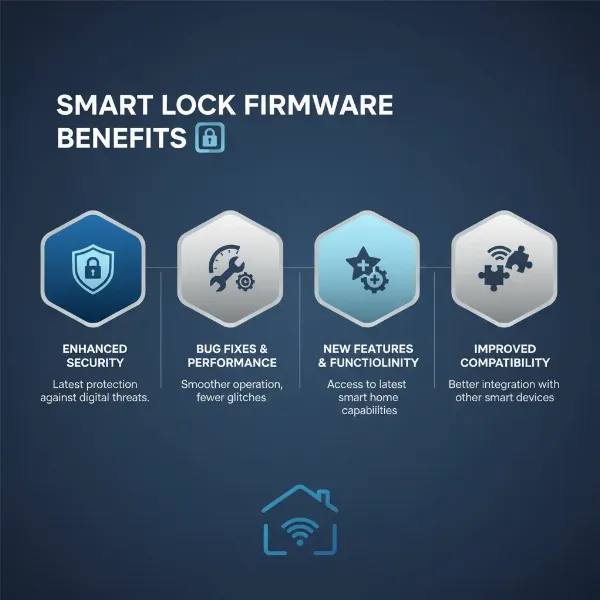 An infographic illustrating the benefits of smart lock firmware updates, including security, performance, features, and compatibility.
Essential Pre-Update Checklist for a Smooth Process
Before you initiate any firmware update, a little preparation can prevent headaches and ensure a successful, uninterrupted process. These steps are crucial for the safety and stability of your smart lock.
Confirming Battery Levels
One of the most common reasons for a failed firmware update is insufficient power. The update process consumes energy, and a power interruption can corrupt the firmware, potentially “bricking” your lock.
- Smart Lock Battery: Ensure your smart lock has a substantial charge. Many manufacturers recommend at least 40% battery life. If it’s low, replace the batteries before starting the update.
- Smartphone Battery: Your smartphone or tablet, which you’ll use to facilitate the update, should also have ample battery—typically at least 20%.
|
Our Picks for the Best Smart Lock in 2026
As an Amazon Associate I earn from qualifying purchases.
|
||
| Num | Product | Action |
|---|---|---|
| 1 | Electronic Passwords Keyless Entry Door Locks Smart Deadbolt Metal Lock Auto Time Delay Locking Secure Durable Low Battery Alert Type-C Port for Emergency Charging |

|
| 2 | TEEHO TE001 Keyless Entry Door Lock with Keypad - Smart Deadbolt Lock for Front Door with 2 Keys - Auto Lock - Easy Installation - Oil-Rubbed Bronze |
|
| 3 | eufy Security Smart Lock C220, Fingerprint Keyless Entry Door Lock, Built-in Wi-Fi, App Remote Control, Front Door Smart Deadbolt, IP53 Waterproof, 8-Months Battery, Nickel |
|
| 4 | TEEHO TE001 Keyless Entry Door Lock with Keypad - Smart Deadbolt Lock for Front Door with 2 Keys - Auto Lock - Easy Installation - Satin Nickel |
|
| 5 | Schlage Encode Smart WiFi Deadbolt Lock for Front Door - Keyless Entry with App or Touchscreen - Works with Alexa, Hey Google, & Airbnb - Create Codes for Guests - Matte Black |
|
| 6 | TEEHO TE001 Keyless Entry Door Lock with Keypad - Smart Deadbolt Lock for Front Door with 2 Keys - Auto Lock - Easy Installation - Matte Black |
|
| 7 | Philips Wi-Fi Door Lock, WiFi Smart Lock Keyless Entry Deadbolt for Front Door, Remote Control, Built-in WiFi, APP Fingerprint Passcode Unlock, Auto Locking |
|
| 8 | ULTRALOQ U-Bolt Pro WiFi Smart Lock with Door Sensor, 8-in-1 Keyless Entry Door Lock with Fingerprint ID, App Remote Control, Built-in WiFi Keypad Deadbolt, Auto Unlock, IP65 Waterproof, Easy Install |
|
| 9 | eufy Security Smart Lock C220, Fingerprint Keyless Entry Door Lock, Built-in Wi-Fi, App Remote Control, Front Door Smart Lock Deadbolt, 8Months Battery, Reliable Power, IP53 Waterproof, BHMA Grade 3 |
|
| 10 | Philips Wi-Fi Door Lock, WiFi Smart Lock Keyless Entry Deadbolt for Front Door, Compatible with Alexa & Google Assistant, Remote Control, Built-in WiFi, APP Fingerprint Passcode Unlock, Auto Locking |
|
Ensuring Stable Connectivity
A stable connection between your smartphone and the smart lock is paramount.
- Bluetooth: Most smart lock firmware updates occur over a Bluetooth connection. Confirm that Bluetooth is enabled on your mobile device.
- Wi-Fi (for your phone): While the update itself might be Bluetooth-based, the app often needs an internet connection to download the firmware package. Ensure your phone is connected to a stable Wi-Fi network.
Using the Latest Official App
Always use the official mobile application provided by your smart lock’s manufacturer. Generic smart home apps might offer some control, but dedicated manufacturer apps are designed for specific functionalities like firmware updates.
- App Version: Before starting, check your app store (Google Play Store or Apple App Store) to ensure you have the very latest version of your smart lock’s application installed. Outdated apps may not display available updates or could lead to compatibility issues during the process.
Staying Within Proximity
Bluetooth’s range is limited. During the update, your smartphone must remain physically close to the smart lock.
- Bluetooth Range: Typically, this means being within 3-10 feet (1-3 meters) of the lock. Do not wander off with your phone or allow it to go into sleep mode.
Identifying Your Smart Lock Model
While less common with in-app updates, it’s good practice to be aware of your specific smart lock model. This helps ensure that the correct firmware is being applied, especially if you ever need to manually troubleshoot. The app usually handles this automatically.
Step-by-Step Guide to Updating Your Smart Lock Firmware
While specific steps may vary slightly by manufacturer (e.g., Kwikset, August, Level, SimpliSafe), the general process for updating your smart lock firmware via its dedicated app follows a consistent pattern.
Accessing the Update Feature
Manufacturers typically notify you when an update is available.
- Check for Notifications: Open your smart lock’s mobile app. You might see a prominent “Firmware Update Available” notification directly on the home screen or within the lock’s specific settings.
- Navigate to Settings: If no notification appears, go to the lock’s settings menu within the app. Look for sections like “Utilities,” “Device Settings,” “Firmware Update,” or “About This Lock.”
Initiating the Update
Once you’ve found the update option, starting the process is usually a simple tap.
- Select Update: Tap “Update Now” or “Install Firmware.”
- Read On-Screen Prompts: The app may display important considerations or warnings. Read these carefully before proceeding.
Maintaining Connection During the Update
This is arguably the most critical phase. The firmware update typically takes 5 to 15 minutes, sometimes longer.
- Keep Your Phone Nearby: Do not move your phone away from the smart lock.
- Keep the App Open and Phone Awake: Avoid switching to other apps, letting your phone’s screen turn off, or putting your phone to sleep. The connection needs to be continuously active.
- Be Patient: Resist the urge to interrupt the process. Disconnecting or turning off devices during the update can corrupt the firmware.
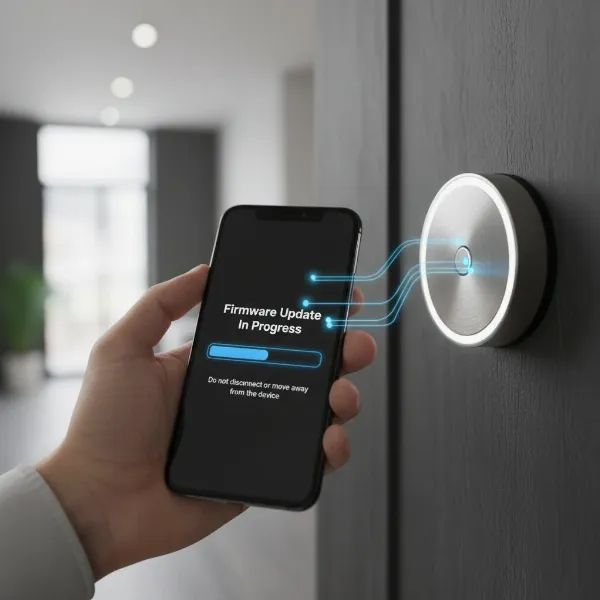 A person holding a smartphone near a smart lock, showing the firmware update progress on the phone screen.
Verifying Successful Completion
Once the update is complete, the app will usually provide a confirmation.
- Success Message: Look for a “Firmware Update Successful” or similar notification within the app.
- Check Firmware Version: You can often verify the new firmware version in the lock’s settings menu.
Performing Post-Update Calibration
Some smart locks, especially those with motorized deadbolts, may require recalibration after a firmware update to ensure proper locking and unlocking mechanisms.
- Follow Manufacturer Instructions: If recommended, perform any calibration steps within the app to ensure your lock functions smoothly and securely. Test the lock manually and via the app to confirm full functionality.
Troubleshooting Common Smart Lock Firmware Update Issues
Even with careful preparation, issues can sometimes arise. Here’s how to address common problems you might encounter.
Failed or Stuck Updates
If the update seems to halt or the app reports a failure:
- Restart Devices: Try restarting both your smartphone and the smart lock (if there’s a clear, safe method to do so without factory resetting).
- Recheck Prerequisites: Double-check battery levels, Bluetooth, and Wi-Fi connections as outlined in the preparation section.
- Retry: Once devices are restarted and connections confirmed, attempt the update again.
“Can’t Connect” or “Invalid Firmware Target” Errors
These error messages usually point to connectivity or compatibility problems.
- Connectivity: For “Can’t Connect,” verify Bluetooth and Wi-Fi are active, and your device is close enough to the lock.
- App/Firmware Mismatch: “Invalid Firmware Target” suggests the app might be trying to install the wrong firmware version. Ensure your app is updated and that the firmware is indeed for your specific lock model. Sometimes, uninstalling and reinstalling the app can resolve underlying data corruption.
No Update Option Visible
If you believe an update should be available but don’t see the option in your app:
- Update Your App: Your app version might be outdated and not recognizing new firmware. Check your app store for updates.
- Manual Check: Navigate directly to the “Firmware Update” section within your lock’s settings, even if no notification appeared.
- Check Manufacturer Website: Visit the support section of your smart lock’s manufacturer website for information on the latest firmware versions and any known issues or update schedules.
When to Contact Support
If you’ve exhausted all troubleshooting steps and still can’t update your smart lock’s firmware, it’s time to reach out to the manufacturer’s customer support. They can provide specific guidance for your model or diagnose more complex issues.
Best Practices for Ongoing Smart Lock Firmware Maintenance
Keeping your smart lock secure and functional is an ongoing process. Adopting these best practices will help you stay on top of firmware maintenance.
- Enable Automatic Updates (If Available): Some smart locks or their companion apps offer an option for automatic firmware updates. If this feature is reliable and you trust the manufacturer, enabling it can simplify maintenance.
- Regularly Check for Available Updates: Make it a habit to open your smart lock app every few weeks or months to manually check for any pending updates.
- Keep Your Smart Lock App Updated: Always ensure you’re running the latest version of the manufacturer’s app. App updates often include necessary preparations for new firmware rollouts.
- Understand Manufacturer-Specific Update Cycles: Different brands have different approaches to firmware updates. Some release them frequently, others less so. Familiarize yourself with your lock’s manufacturer’s update policies.
“Treat your smart lock’s firmware like the operating system of a mini-computer. Regular updates are non-negotiable for security and to keep pace with technological advancements, ensuring it remains an impenetrable fortress for your home.” – Tech Security Expert
Conclusion
Updating your smart lock firmware safely is a fundamental aspect of smart home security and device longevity. By understanding what firmware is, preparing adequately, following the step-by-step instructions, and knowing how to troubleshoot common issues, you can ensure your smart lock remains at the forefront of home protection. These routine updates don’t just fix problems; they enhance performance, introduce new capabilities, and most importantly, fortify your home against potential threats. Don’t let your smart lock fall behind – embrace regular firmware maintenance for ultimate peace of mind. What steps will you take today to ensure your smart lock is always operating at its best?
Frequently Asked Questions
Why is a stable internet connection important for my phone during a smart lock firmware update?
Even if the smart lock updates via Bluetooth, your phone needs a stable internet (Wi-Fi or cellular data) connection to download the firmware update package from the manufacturer’s servers before it can transfer it to the lock.
Can I use my smart lock during a firmware update?
It is generally not recommended to operate your smart lock during a firmware update. While some apps may allow basic operations, it’s best to avoid any interaction with the lock until the update process is fully complete and confirmed to prevent potential corruption or interruption.
What happens if the smart lock firmware update fails?
If a firmware update fails, your smart lock might experience issues like unresponsiveness, loss of functionality, or complete bricking. In most cases, restarting your devices and retrying the update can resolve the problem. If not, contacting customer support for specific troubleshooting or replacement options is essential.
