Upgrading to a smart lock brings unparalleled convenience and enhanced security, transforming how you interact with your home. But what if you have a collection of existing keys you’d rather not discard or manage separately? The good news is that for many smart locks, especially those from leading manufacturers, aligning your new smart lock with your trusted old keys is entirely possible. This guide will walk you through the process, covering various smart lock types and helping you maintain a single-key lifestyle for ultimate ease and peace of mind.
What Does Rekeying a Smart Lock Mean?
Rekeying a lock means altering its internal mechanism, specifically the pin configuration within the cylinder, so that a new key operates it while the old key no longer works. It’s a cost-effective alternative to replacing the entire lock, offering a fresh layer of security without a complete hardware overhaul. For smart locks, this often applies to models that incorporate a traditional physical keyway alongside their digital functionalities. Unlike fully keyless smart locks, which rely solely on codes, biometrics, or app control, many smart locks still provide a physical key override for backup or user preference.
You might want to rekey your smart lock for several compelling reasons: perhaps you’ve moved into a new home, misplaced a key, or had a tenant move out. Rekeying ensures that any old, potentially compromised keys become instantly useless, safeguarding your property. It also offers the significant benefit of key unification—imagine using just one physical key for all your entry points, simplifying your daily routine.
Can All Smart Locks Be Rekeyed to Your Old Keys?
The ability to rekey a smart lock to your existing keys largely depends on the lock’s design and its keyway technology. Not all smart locks are created equal in this regard.
Some smart locks, like those incorporating Kwikset’s SmartKey Security technology, are specifically engineered for easy, DIY rekeying. These locks feature a unique cylinder design that allows homeowners to change the key configuration in a matter of seconds without needing a locksmith or disassembling the lock. This is an ideal solution for matching your new smart lock to existing Kwikset keys you already use.
On the other hand, many smart locks utilize standard pin and tumbler cylinders, similar to traditional locks. These can also be rekeyed to a new key, but the process is more involved, typically requiring a rekeying kit or the assistance of a professional locksmith. Brands like Lockly, for instance, can be rekeyed by either replacing the entire cylinder or by manually changing the pin configuration.
Crucially, retrofit smart locks, such as those from August, function differently. These devices attach to the inside of your existing deadbolt, leaving the exterior keyway untouched. In this scenario, the August smart lock doesn’t have its own physical keyway to rekey; instead, it works with your original deadbolt and its existing keys. If you want to change the physical key for an August-equipped door, you would rekey the original traditional deadbolt, not the smart lock unit itself.
Finally, completely keyless smart locks—those without any physical keyway for backup entry—cannot be rekeyed to a physical key. Since there’s no traditional cylinder, there’s nothing to modify to accept a physical key.
Rekeying a Smart Lock with Kwikset SmartKey Technology
Kwikset’s SmartKey Security is a game-changer for homeowners seeking convenient rekeying. If your smart lock features this technology, you can easily match it to your existing Kwikset keys.
Identifying a Kwikset SmartKey Lock
|
Our Picks for the Best Smart Lock in 2026
As an Amazon Associate I earn from qualifying purchases.
|
||
| Num | Product | Action |
|---|---|---|
| 1 | Schlage Encode Smart WiFi Deadbolt Lock for Front Door - Keyless Entry with App or Touchscreen - Works with Alexa, Hey Google, & Airbnb - Create Codes for Guests - Matte Black |

|
| 2 | Philips Wi-Fi Door Lock, WiFi Smart Lock Keyless Entry Deadbolt for Front Door, Compatible with Alexa & Google Assistant, Remote Control, Built-in WiFi, APP Fingerprint Passcode Unlock, Auto Locking |
|
| 3 | eufy Security Smart Lock C220, Fingerprint Keyless Entry Door Lock, Built-in Wi-Fi, App Remote Control, Front Door Smart Deadbolt, IP53 Waterproof, 8-Months Battery, Nickel |
|
| 4 | ULTRALOQ U-Bolt Pro WiFi Smart Lock with Door Sensor, 8-in-1 Keyless Entry Door Lock with Fingerprint ID, App Remote Control, Built-in WiFi Keypad Deadbolt, Auto Unlock, IP65 Waterproof, Easy Install |
|
| 5 | TEEHO TE001 Keyless Entry Door Lock with Keypad - Smart Deadbolt Lock for Front Door with 2 Keys - Auto Lock - Easy Installation - Oil-Rubbed Bronze |
|
| 6 | TEEHO TE001 Keyless Entry Door Lock with Keypad - Smart Deadbolt Lock for Front Door with 2 Keys - Auto Lock - Easy Installation - Matte Black |
|
| 7 | Electronic Passwords Keyless Entry Door Locks Smart Deadbolt Metal Lock Auto Time Delay Locking Secure Durable Low Battery Alert Type-C Port for Emergency Charging |
|
| 8 | eufy Security Smart Lock C220, Fingerprint Keyless Entry Door Lock, Built-in Wi-Fi, App Remote Control, Front Door Smart Lock Deadbolt, 8Months Battery, Reliable Power, IP53 Waterproof, BHMA Grade 3 |
|
| 9 | TEEHO TE001 Keyless Entry Door Lock with Keypad - Smart Deadbolt Lock for Front Door with 2 Keys - Auto Lock - Easy Installation - Satin Nickel |
|
| 10 | Philips Wi-Fi Door Lock, WiFi Smart Lock Keyless Entry Deadbolt for Front Door, Remote Control, Built-in WiFi, APP Fingerprint Passcode Unlock, Auto Locking |
|
Before you begin, confirm your smart lock has SmartKey technology. Look for a small, horizontal slot adjacent to the keyhole. This is the indicator for the SmartKey rekeying mechanism. Many Kwikset smart locks, including models from their Halo, Kevo, and SmartCode series, come equipped with SmartKey Security.
What You’ll Need
To rekey a Kwikset SmartKey lock, you’ll need three items:
- Your current working key: This is the key that presently operates the smart lock.
- The SmartKey tool: This small, L-shaped tool usually comes with your Kwikset lock. If you’ve misplaced it, replacements are readily available.
- Your new key: This is the existing key you want the smart lock to operate with. Ensure it’s a Kwikset-compatible key blank.
Step-by-Step Guide to Rekeying Your Kwikset Smart Lock
The process is remarkably simple and takes only a few seconds:
- Prepare the Lock: Ensure the door is open and the lock is in the unlocked position. If it’s a deadbolt, extend the bolt. If it’s a knob or lever, ensure it’s in the locked position.
- Insert the Current Key: Fully insert the key that currently operates the lock into the keyway.
- Rotate the Current Key: Rotate the current key 90 degrees clockwise.
- Insert the SmartKey Tool: With the current key still rotated, fully and firmly insert the SmartKey tool into the small, horizontal SmartKey hole next to the keyway. You might feel a click.
- Remove the Tool and Current Key: Carefully remove both the SmartKey tool and the current key. The cylinder is now ready to accept the new key.
- Insert the New Key: Fully insert your desired new key into the keyway.
- Rotate the New Key: Rotate the new key 180 degrees counter-clockwise, then rotate it 180 degrees clockwise. For some models, it’s a 90-degree turn back to the starting position.
- Test the New Key: Without removing the new key, rotate it to ensure it operates the lock smoothly. Also, try to pull the key out in various rotated positions to confirm it doesn’t come out prematurely.
- Remove the New Key: Rotate the new key back to its starting (vertical) position and remove it.
Your Kwikset smart lock is now rekeyed to your old key, and the previous key will no longer work.
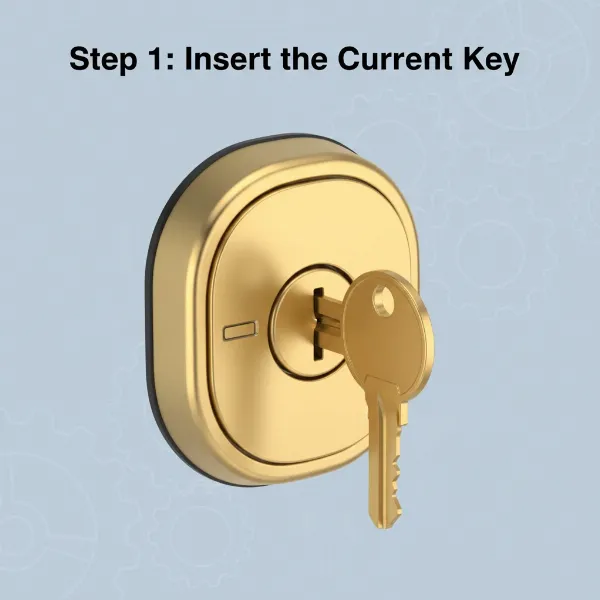 Illustration of Kwikset SmartKey rekeying a smart lock, showing tool insertion and key rotation.
Important Tips for Kwikset SmartKey Rekeying
- Door Open: Always rekey with the door open to avoid accidentally locking yourself out if something goes wrong.
- Full Insertion: Ensure both the old and new keys are fully inserted before turning.
- Firm Tool Insertion: The SmartKey tool must be inserted firmly to engage the mechanism correctly.
- Test Thoroughly: After rekeying, test the new key multiple times to confirm proper operation and that the old key no longer works.
- Misprogramming: If neither the old nor new key works after rekeying, the cylinder may be misprogrammed. Kwikset provides support resources and videos to help recover and rekey a misprogrammed cylinder.
Rekeying Other Smart Locks (Pin and Tumbler Systems)
For smart locks that use a traditional pin and tumbler cylinder but don’t feature an easy DIY rekeying system like Kwikset’s SmartKey, the process is more similar to rekeying a standard mechanical lock.
When Is This Necessary?
You’ll need to use this method if your smart lock has a physical keyway but isn’t a Kwikset SmartKey model, or if you prefer to replace the entire cylinder. This often applies to brands that allow for cylinder swapping or require manual pin manipulation.
What You’ll Need
This process is more technical and typically requires a rekeying kit, which includes:
- A cylinder removal tool (follower tool)
- New pins of various lengths
- Tweezers
- A small screwdriver
- Your existing key (the “new” key you want the lock to work with)
- The old key (if available, helpful for initial disassembly)
Overview of the Process
- Remove the Lock from the Door: You’ll typically need to uninstall the smart lock’s exterior component to access the cylinder.
- Disassemble the Cylinder: This involves removing retaining clips and carefully extracting the key plug from the cylinder housing. The follower tool is crucial here to keep the small pins and springs from flying out.
- Replace the Pins: With the key plug out, insert your new key. The old pins will now be exposed and can be removed. Replace them with the correct new pins from your kit, ensuring they align perfectly with the bitting of your new key.
- Reassemble the Cylinder: Carefully reinsert the key plug with the new pins back into the cylinder housing, using the follower tool to guide it and maintain pin alignment.
- Reinstall the Lock: Reattach the cylinder and reassemble the smart lock onto your door.
When to Call a Professional Locksmith
While DIY rekeying a standard pin and tumbler cylinder is possible, it can be intricate and requires a steady hand and attention to detail. If you’re uncomfortable with small parts, fine motor skills, or the possibility of misplacing pins, it’s highly recommended to call a professional locksmith. Locksmiths have the expertise and specialized tools to rekey virtually any standard cylinder accurately and efficiently, ensuring your smart lock functions perfectly with your chosen key. They can also advise on the best security practices for your specific lock.
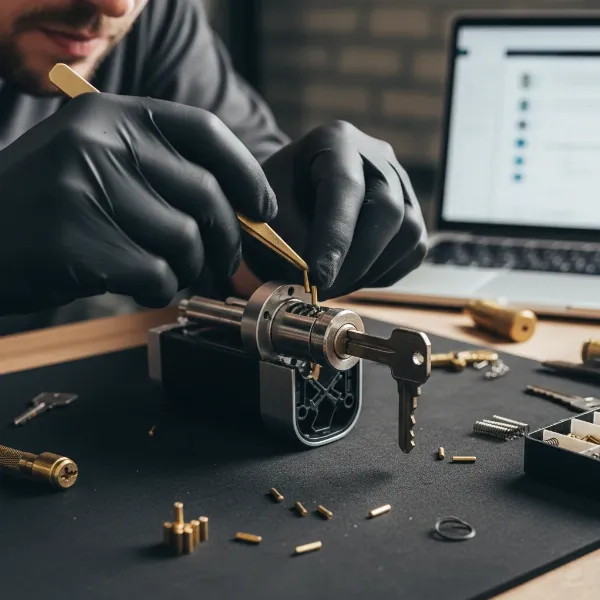 Professional locksmith rekeying a pin and tumbler smart lock cylinder with specialized tools and new pins.
What About Retrofit Smart Locks Like August?
Retrofit smart locks, such as the popular August Smart Lock series, operate on a different principle when it comes to physical keys. Instead of replacing your entire deadbolt, August locks attach to the inside of your existing deadbolt. This means they leverage your current deadbolt’s mechanical components and keyway.
How They Work with Existing Keys
With an August Smart Lock installed, the exterior of your door remains completely unchanged, including the keyhole. You can continue to use your original physical keys to lock and unlock the door just as you always have. The August unit on the inside simply automates the thumbturn, allowing you to control the deadbolt electronically via your smartphone, voice assistant, or automatic features like auto-lock and auto-unlock.
Clarifying Rekeying for August Locks
Because an August smart lock does not have its own physical key cylinder, the concept of “rekeying the August smart lock” is a misnomer. If you wish to change the physical key that operates your door, you would need to rekey the original traditional deadbolt that the August unit is attached to. This process would follow the guidelines for rekeying a standard pin and tumbler lock, or a Kwikset SmartKey deadbolt if your existing lock is one.
Benefits of This Design
This retrofit design offers distinct advantages:
- Retains Old Keys: You don’t have to discard or replace your existing keys; they remain fully functional as a backup or primary entry method.
- Renter-Friendly: Ideal for renters who cannot modify their building’s exterior hardware but still want smart lock functionality.
- Simple Installation: Installation is typically quick and non-invasive, requiring only a screwdriver.
Maintaining Your Smart Lock’s Physical Keyway
Even with smart features, the physical keyway of your smart lock (if it has one) requires some basic maintenance to ensure smooth operation and longevity.
- Lubrication: Periodically apply a graphite-based lubricant (never oil-based) to the keyway. This helps the pins move freely and prevents sticking.
- Clean Keys: Ensure your physical keys are clean and free of debris before inserting them into the lock. Dirty keys can transfer grime into the cylinder, affecting its performance.
- Avoid Force: Never force a key into the lock or try to turn a key that feels stuck. This can bend the key or damage the internal mechanism.
- Regular Testing: Even if you primarily use smart features, occasionally test your physical key to ensure it works correctly, especially after any rekeying procedures.
“The physical keyway in a smart lock isn’t just a backup; it’s a vital component that deserves the same care as any traditional lock. Proper maintenance ensures that your smart lock is truly redundant and always accessible, regardless of technology glitches or power outages.” – Jane Doe, Certified Locksmith & Smart Home Integrator
Conclusion
Rekeying your smart lock to match your old keys is a practical step towards streamlining your home access and enhancing security. Whether you leverage the ingenious simplicity of Kwikset’s SmartKey technology, undertake a more traditional pin-and-tumbler rekeying, or simply rely on your existing deadbolt with a retrofit smart lock, the goal remains the same: convenience and peace of mind. By understanding your specific smart lock’s capabilities and following the right procedures, you can consolidate your keys, secure your home against old access points, and embrace the future of smart living without sacrificing the comfort of familiarity. Take control of your home security today and enjoy the seamless blend of smart technology and traditional reliability. Which rekeying method will you choose to simplify your life?
Frequently Asked Questions
Can I rekey a smart lock if I’ve lost all the original keys?
If you’ve lost all original keys for a smart lock (that has a physical keyway), rekeying typically becomes more challenging. For Kwikset SmartKey locks, you must have the current working key to use the rekeying feature. For traditional pin and tumbler smart locks, a locksmith can rekey it even without the original key, but it often involves disassembling the cylinder or originating a new key from the lock’s code.
Is rekeying a smart lock secure?
Yes, when done correctly, rekeying a smart lock is very secure. It changes the internal pin configuration, making previous keys obsolete. For Kwikset SmartKey, the technology is also designed to be pick and bump resistant, adding an extra layer of security compared to many traditional locks.
How much does it cost to have a locksmith rekey a smart lock?
The cost for a locksmith to rekey a smart lock can vary depending on your location, the complexity of the lock, and whether they need to come to your home. On average, rekeying a single lock typically costs between $50 to $150, plus a service call fee if applicable. This is often less expensive than replacing the entire smart lock.
Can I rekey different brands of smart locks to use the same key?
This is generally only possible if all your smart locks (or their underlying traditional deadbolts) are from the same manufacturer and use the same keyway (e.g., all Kwikset or all Schlage) and are designed to be rekeyed. Kwikset SmartKey technology, for example, allows you to rekey multiple Kwikset locks to a single existing Kwikset key. For different keyways, you would need to replace cylinders to match a common key, which can be more involved.
