Smart locks revolutionize home access with unparalleled convenience, yet one feature, auto-lock, can occasionally lead to frustrating lockouts. While designed to bolster security by ensuring your door is always secured, its automatic nature can sometimes catch you off guard, leaving you outside your home without a key. This comprehensive guide will navigate you through understanding, adjusting, and, if necessary, disabling your smart lock’s auto-lock function, ensuring you maintain both security and seamless access to your home.
Understanding Your Smart Lock’s Auto-Lock Feature
Auto-lock is a core security feature in most smart locks, designed to automatically secure your door after a predetermined period or when the door is detected as closed. Its primary purpose is to eliminate the worry of forgetting to lock up, offering peace of mind that your home remains protected even when you’re in a hurry. This function typically activates after the door has been unlocked and either a set timer elapses, or a door sensor confirms the door is fully closed. Some advanced locks even incorporate gyroscopic sensors for precise door position detection.
While invaluable for security, the automatic nature of this feature can, at times, become a source of inconvenience. Imagine stepping out to grab the mail, only to find your door has already locked behind you. This trade-off between heightened security and everyday usability is precisely why understanding and customizing your auto-lock settings is crucial.
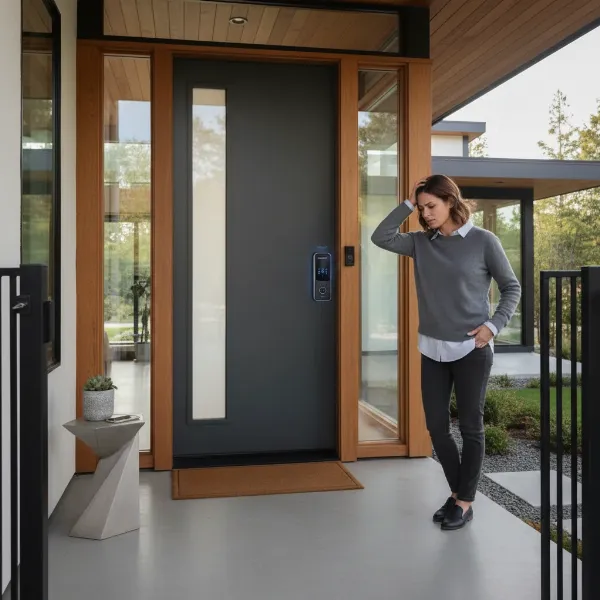 Person locked out by smart lock auto-lock, showing inconvenience and security balance.
When and Why You Might Consider Adjusting Auto-Lock
There are various scenarios where a rigidly set auto-lock can become more of a hindrance than a help:
- Quick Errands: Stepping out for a brief moment to check the mail, water plants, or chat with a neighbor can quickly turn into a lockout if your door automatically secures itself within seconds.
- Yard Work or Outdoor Activities: When you’re frequently moving in and out of the house while gardening or working in the garage, constant locking and unlocking, or getting locked out, can disrupt your flow.
- Moving Items: Bringing in groceries, furniture, or other bulky items often requires the door to remain open or unlocked for an extended period. An aggressive auto-lock can interfere with this process.
- Entertaining Guests: During social gatherings, you might prefer your door to remain unlocked for easy access for guests, rather than having it relock every time someone enters or exits.
In these situations, adjusting the auto-lock feature allows you to regain control, balancing your security needs with the demands of daily convenience.
Step-by-Step Guide: Disabling or Adjusting Auto-Lock Settings
The method for managing auto-lock varies by smart lock brand and model. Here’s a breakdown of common approaches:
Via Mobile App Settings (Most Common)
For the majority of modern smart locks, the primary way to control auto-lock is through the manufacturer’s dedicated mobile application. This method offers the most flexibility and user-friendly interface.
General Steps:
- Open the Smart Lock App: Launch the app associated with your smart lock (e.g., eufy Security, TTLock, MyQ, SimpliSafe, Xiaomi Home).
- Select Your Lock: Navigate to the specific lock you wish to configure, usually found under a “Devices” or “My Locks” section.
- Access Settings: Look for a “Settings” or gear icon (⚙️) on the lock’s device page.
- Find Auto-Lock Option: Within the settings menu, locate “Auto-Lock,” “Automatic Locking,” “Lock Timer,” or a similar phrase.
- Adjust or Disable:
- To Disable: Toggle the “Auto-Lock” function to the “Off” position. Some locks, like certain Xiaomi models, have auto-lock disabled by default and require manual activation.
- To Adjust Delay: If you prefer not to disable it entirely, you can typically set a custom delay time, often ranging from a few seconds (e.g., 30 seconds) up to several minutes (e.g., 60 minutes) or more. Choose a duration that suits your routine without compromising security.
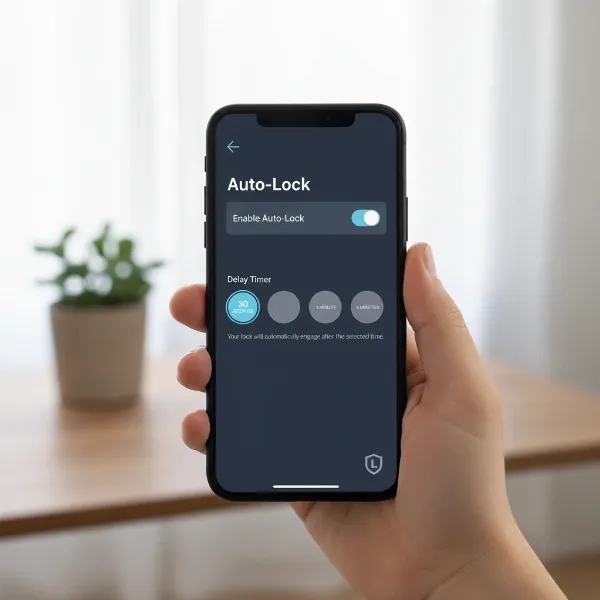 Mobile app showing smart lock auto-lock settings, delay adjustment options.
Our Picks for the Best Smart Lock in 2026As an Amazon Associate I earn from qualifying purchases.Num Product Action 1 eufy Security Smart Lock C220, Fingerprint Keyless Entry Door Lock, Built-in Wi-Fi, App Remote Control, Front Door Smart Lock Deadbolt, 8Months Battery, Reliable Power, IP53 Waterproof, BHMA Grade 3 
2 TEEHO TE001 Keyless Entry Door Lock with Keypad - Smart Deadbolt Lock for Front Door with 2 Keys - Auto Lock - Easy Installation - Oil-Rubbed Bronze
3 ULTRALOQ U-Bolt Pro WiFi Smart Lock with Door Sensor, 8-in-1 Keyless Entry Door Lock with Fingerprint ID, App Remote Control, Built-in WiFi Keypad Deadbolt, Auto Unlock, IP65 Waterproof, Easy Install
4 Philips Wi-Fi Door Lock, WiFi Smart Lock Keyless Entry Deadbolt for Front Door, Compatible with Alexa & Google Assistant, Remote Control, Built-in WiFi, APP Fingerprint Passcode Unlock, Auto Locking
5 TEEHO TE001 Keyless Entry Door Lock with Keypad - Smart Deadbolt Lock for Front Door with 2 Keys - Auto Lock - Easy Installation - Matte Black
6 Schlage Encode Smart WiFi Deadbolt Lock for Front Door - Keyless Entry with App or Touchscreen - Works with Alexa, Hey Google, & Airbnb - Create Codes for Guests - Matte Black
7 eufy Security Smart Lock C220, Fingerprint Keyless Entry Door Lock, Built-in Wi-Fi, App Remote Control, Front Door Smart Deadbolt, IP53 Waterproof, 8-Months Battery, Nickel
8 Philips Wi-Fi Door Lock, WiFi Smart Lock Keyless Entry Deadbolt for Front Door, Remote Control, Built-in WiFi, APP Fingerprint Passcode Unlock, Auto Locking
9 TEEHO TE001 Keyless Entry Door Lock with Keypad - Smart Deadbolt Lock for Front Door with 2 Keys - Auto Lock - Easy Installation - Satin Nickel
10 Electronic Passwords Keyless Entry Door Locks Smart Deadbolt Metal Lock Auto Time Delay Locking Secure Durable Low Battery Alert Type-C Port for Emergency Charging
Using Physical Switches (For Specific Models)
Some smart lock models, particularly older or more mechanically focused designs, include physical switches on the interior unit for feature control, including auto-lock.
Example Models and Steps:
- Vivint Smart Lock (e.g., 9910) & Kwikset SmartCode (e.g., 909/910/911/912):
- Remove the Interior Cover: Gently pull the back cover of the interior lock unit upwards to expose the battery compartment and internal switches.
- Locate DIP Switches: You will typically see a row of four small switches (DIP switches).
- Identify Auto-Lock Switch: For these models, auto-lock is usually controlled by Switch #2.
- Adjust Position:
- Up position: Auto-lock is enabled.
- Down position: Auto-lock is disabled.
- Replace Cover: Once set, carefully replace the back cover.
Keypad Programming (Less Common, Check Manual)
While less common for disabling auto-lock, some smart locks allow certain settings to be adjusted directly via the lock’s keypad, often by entering a specific sequence of codes followed by a command. This usually requires consulting your lock’s user manual for the exact steps and programming codes. Brands like certain Samsung SHS-3321 models and some RemoteLock devices have historically offered keypad-based programming options.
Advanced Strategies to Prevent Lockouts Without Fully Disabling Auto-Lock
Completely disabling auto-lock can compromise security. Fortunately, there are smart strategies to mitigate lockout risks while retaining some level of automatic protection.
Utilize Auto-Lock Schedules or Passage Mode
Many smart lock apps allow you to set specific schedules for auto-lock behavior. This means you can have auto-lock active during specific hours (e.g., overnight) and disabled or set to a longer delay during others (e.g., daytime).
- Auto-Lock Schedules: Configure your lock to automatically disable its auto-lock function, or switch to “Passage Mode,” during periods when you’re likely to be frequently entering and exiting, such as business hours or weekends.
- Passage Mode: This feature allows the lock to remain unlocked after a valid entry until it is manually locked again, or until a scheduled auto-lock period resumes.
Implement Multiple Reliable Access Methods
Relying on a single entry method increases the risk of lockout. A robust smart lock system should offer several ways to unlock your door:
- Keypads with PIN Codes: A numeric keypad provides a reliable backup if your phone battery dies or you don’t have it with you.
- Fingerprint Readers: Biometric access offers quick, keyless entry without needing codes or a phone.
- Smartphone App Access: The primary method for most smart lock users, offering remote control.
- Traditional Key Backup: Most smart locks include a physical key override. Ensure you have a spare key hidden securely or entrusted to a trusted contact.
- Temporary Access Codes: For guests or service providers, issue temporary or time-sensitive codes rather than disabling auto-lock for extended periods.
- Remote Unlocking: If a trusted family member or friend has access to your smart lock app, they can remotely unlock the door for you in an emergency.
Leverage Smart Home Integrations
Integrating your smart lock with a broader smart home ecosystem can offer creative solutions to manage auto-lock:
- Voice Commands: With platforms like Apple HomeKit, Amazon Alexa, or Google Assistant, you might be able to create routines or use voice commands to temporarily disable auto-lock, or check its status, preventing the need to delve into app settings repeatedly.
- Custom Automations: Advanced users can set up automations based on presence detection (geofencing), a specific time of day, or the state of other smart home devices (e.g., disable auto-lock when the garage door is open).
Keep a Physical Backup Key in a Secure Location
This classic advice remains vital even with the most advanced smart locks.
“Always keep a physical backup key in a secure, accessible location, such as with a trusted neighbor or in a discreet outdoor key hider. This simple measure can be your ultimate failsafe against any smart lock malfunction or accidental lockout.” – Admin, smartlockchoice.com
Ensure your backup key is not kept on your person, where it could be lost alongside your primary access methods.
Security Considerations and Best Practices
While managing auto-lock for convenience, never forget its fundamental role in securing your home.
- Inherent Security: Auto-lock is a crucial layer of security, safeguarding against the common human error of forgetting to lock the door.
- Risks of Disabling: Completely disabling auto-lock means your door will remain unlocked until you manually secure it, potentially exposing your home to increased risk.
- Monitor Door Status: If you opt for longer auto-lock delays or temporary disabling, regularly check your smart lock app to confirm your door’s status. Many apps offer real-time notifications for door status or if a door is left ajar.
- Proactive Battery Management: Most smart lock issues, including unexpected auto-lock behavior, can stem from low battery levels. Enable low-battery notifications in your app and replace batteries proactively to avoid power-related lockouts. Interestingly, changing the auto-lock delay settings typically has no significant impact on battery life itself.
Troubleshooting Common Auto-Lock Issues
Even with careful configuration, smart locks can sometimes act unexpectedly. Here are tips for common auto-lock glitches:
- Auto-Lock Engaging Immediately: If your lock auto-locks instantly despite disabled settings, this might indicate a software glitch or a door sensor calibration issue. Some users have reported success by enabling auto-lock in the app, setting a short timer, verifying it works, and then disabling it again.
- Door Sensor Malfunction: If your lock relies on a door sensor to detect closure before auto-locking (e.g., eufy’s Automatic Locking mode or Xiaomi’s door sensor integration), ensure the sensor is properly aligned and clean. Malfunctions can cause the lock to either not auto-lock or to auto-lock prematurely.
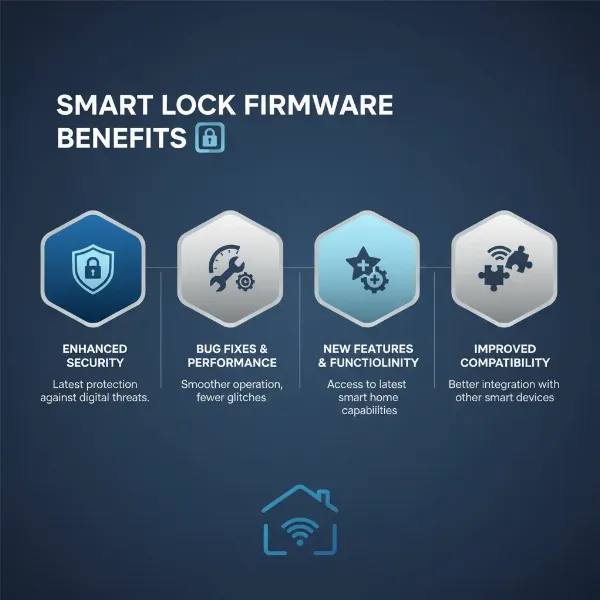
- Firmware Updates: Always keep your smart lock’s firmware updated. Manufacturers frequently release updates to fix bugs and improve performance, which can resolve erratic auto-lock behavior.
- Factory Reset: As a last resort, performing a factory reset and reconfiguring your lock can often resolve persistent issues, though this means re-adding all user codes and settings.
Conclusion
The auto-lock feature in smart locks is a testament to convenience meeting security, yet mastering its settings is key to a truly optimized home experience. By understanding how to disable or precisely adjust your smart lock’s auto-lock, coupled with implementing intelligent backup strategies and security best practices, you can confidently prevent accidental lockouts. This empowers you to enjoy the full spectrum of smart lock benefits without compromising either your home’s safety or your personal ease of access.
What specific auto-lock challenge do you face most often, and how has adjusting your smart lock settings made a difference in your daily routine?
Frequently Asked Questions
Does disabling auto-lock affect my smart lock’s battery life?
No, the delay settings for auto-lock generally do not significantly impact the battery life of your digital lock. The power consumed by the auto-lock feature is minimal compared to active functions like unlocking, meaning whether it locks immediately or after a long delay, the effect on battery drain is negligible.
Can I temporarily disable auto-lock on my smart lock?
Yes, most smart locks allow for temporary adjustments. You can usually use the mobile app to disable the feature or set up a specific schedule where auto-lock is inactive during certain hours (e.g., during the day) and re-enables automatically later.
What if my smart lock doesn’t have a clear “disable auto-lock” option?
If a direct “disable” option isn’t available, check if you can extend the auto-lock delay to its maximum duration, effectively achieving a similar outcome for most practical purposes. Additionally, explore “Passage Mode” or scheduling features within your app, or consult your manual for physical switch options.
Is it safe to completely disable my smart lock’s auto-lock feature?
Completely disabling auto-lock can reduce your home’s security, as it relies on you to manually lock the door every time. It’s only advisable if you have robust alternative security measures in place, such as reliable manual locking habits, door status monitoring, and multiple access backups.
How often should I review my smart lock’s auto-lock settings?
It’s a good practice to review your smart lock settings, including auto-lock, whenever your daily routine changes, when you have guests, or at least seasonally. This ensures your lock’s behavior aligns with your current lifestyle and security preferences.