Smart locks bring unparalleled convenience and enhanced security to our homes, but like all advanced technology, they occasionally encounter glitches. When your smart lock begins to beep mysteriously or flash cryptic lights, it’s often trying to tell you something important. Understanding these common smart lock error codes and their underlying meanings is crucial for quickly diagnosing and resolving issues, ensuring your home remains secure and accessible.
Understanding Smart Lock Signals: Beeps, Flashes, and App Alerts
Smart locks are designed to communicate their operational status and any detected problems through various signals. These include distinct audio cues like beeps and buzzes, visual indicators such as flashing LED lights in different colors, and digital notifications sent directly to your smartphone app. Recognizing these signals is the first step in effective troubleshooting, allowing you to interpret what your lock is trying to convey. Each pattern or specific code typically points to a particular type of issue, from low battery levels to connectivity problems or mechanical faults.
Common Smart Lock Error Categories and Codes
When your smart lock acts up, it usually falls into a few key categories. Knowing these general types of errors can significantly narrow down your troubleshooting efforts and help you get your lock back to optimal function.
Battery-Related Errors
|
Our Picks for the Best Smart Lock in 2026
As an Amazon Associate I earn from qualifying purchases.
|
||
| Num | Product | Action |
|---|---|---|
| 1 | TEEHO TE001 Keyless Entry Door Lock with Keypad - Smart Deadbolt Lock for Front Door with 2 Keys - Auto Lock - Easy Installation - Oil-Rubbed Bronze |

|
| 2 | eufy Security Smart Lock C220, Fingerprint Keyless Entry Door Lock, Built-in Wi-Fi, App Remote Control, Front Door Smart Deadbolt, IP53 Waterproof, 8-Months Battery, Nickel |
|
| 3 | eufy Security Smart Lock C220, Fingerprint Keyless Entry Door Lock, Built-in Wi-Fi, App Remote Control, Front Door Smart Lock Deadbolt, 8Months Battery, Reliable Power, IP53 Waterproof, BHMA Grade 3 |
|
| 4 | Schlage Encode Smart WiFi Deadbolt Lock for Front Door - Keyless Entry with App or Touchscreen - Works with Alexa, Hey Google, & Airbnb - Create Codes for Guests - Matte Black |
|
| 5 | Philips Wi-Fi Door Lock, WiFi Smart Lock Keyless Entry Deadbolt for Front Door, Remote Control, Built-in WiFi, APP Fingerprint Passcode Unlock, Auto Locking |
|
| 6 | ULTRALOQ U-Bolt Pro WiFi Smart Lock with Door Sensor, 8-in-1 Keyless Entry Door Lock with Fingerprint ID, App Remote Control, Built-in WiFi Keypad Deadbolt, Auto Unlock, IP65 Waterproof, Easy Install |
|
| 7 | TEEHO TE001 Keyless Entry Door Lock with Keypad - Smart Deadbolt Lock for Front Door with 2 Keys - Auto Lock - Easy Installation - Matte Black |
|
| 8 | Electronic Passwords Keyless Entry Door Locks Smart Deadbolt Metal Lock Auto Time Delay Locking Secure Durable Low Battery Alert Type-C Port for Emergency Charging |
|
| 9 | TEEHO TE001 Keyless Entry Door Lock with Keypad - Smart Deadbolt Lock for Front Door with 2 Keys - Auto Lock - Easy Installation - Satin Nickel |
|
| 10 | Philips Wi-Fi Door Lock, WiFi Smart Lock Keyless Entry Deadbolt for Front Door, Compatible with Alexa & Google Assistant, Remote Control, Built-in WiFi, APP Fingerprint Passcode Unlock, Auto Locking |
|
Battery-related errors are among the most frequent issues smart lock users encounter, as these devices rely on consistent power for all their smart functionalities. These errors typically signal that your lock’s power source is running low or critically depleted, necessitating immediate attention.
Signals: Common indicators include a series of short beeps, often in patterns like four or eight successive beeps for brands like RemoteLock, or five beeps accompanied by a steady red LED for Yale locks. Visually, you might notice flashing red or amber lights on the keypad, as seen with August and Schlage locks (e.g., Schlage’s E1 code for low battery). These alerts are designed to warn you before the battery completely dies, preventing unexpected lockouts.
Meaning: These signals universally mean the batteries are low and nearing the end of their life cycle. A critically low battery can lead to reduced functionality, unresponsiveness, or even a complete shutdown of the lock, leaving you unable to operate it electronically.
Troubleshooting: The primary solution is to replace all existing batteries with new, high-quality alkaline batteries. It’s crucial to replace all batteries simultaneously and avoid mixing old and new ones to ensure consistent power delivery. Double-check that the batteries are inserted correctly, aligning with the positive and negative terminals, and ensure the battery contacts are clean and free of corrosion. Some locks may also benefit from lithium batteries, especially in cold climates, if supported by the manufacturer.
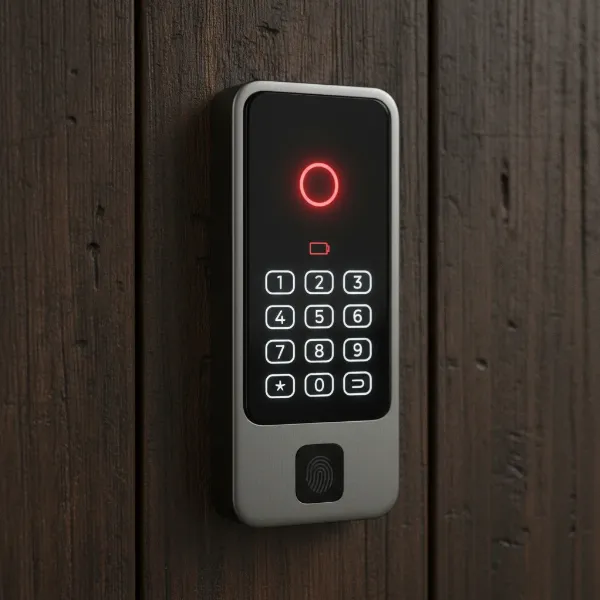 Smart lock showing low battery warning with flashing red light and beeps.
Access Code and Keypad Errors
Issues related to access codes and the keypad are common, often arising from simple input mistakes or security features designed to protect your home. These errors prevent authorized users from gaining entry, making it essential to understand their causes.
Signals: An incorrect code entry is typically indicated by a single buzz (Yale) or beep (August). Multiple incorrect attempts often trigger a temporary lockout, where the keypad becomes unresponsive for a period (e.g., 5 minutes for Yale after 7 failed attempts, or 60 seconds for RemoteLock after 5 denied attempts), sometimes accompanied by continuous beeping or a red padlock icon. Schlage locks might display an E3 code for an incorrect code or a red ‘X’ light.
Meaning: These signals usually mean an invalid access code was entered, or the lock’s security feature has temporarily disabled the keypad due to repeated incorrect entries. In some cases, the code may have been changed or deleted without your knowledge, or the keypad itself might be dirty or malfunctioning.
Troubleshooting: First, verify that you are entering the correct access code. If multiple incorrect attempts occurred, wait for the lockout period to expire. If the issue persists, try resetting the access code via the lock’s companion app or through manual programming, consulting your user manual. Clean the keypad gently with a dry cloth to remove any debris that might interfere with button presses. If the problem continues, a software glitch might necessitate a soft reset of the lock.
Connectivity and Communication Errors
In the age of smart homes, a smart lock’s ability to communicate reliably with your phone, Wi-Fi network, or smart home hub is paramount. Connectivity issues can disrupt remote control, notifications, and even basic unlocking functions.
Signals: These errors often manifest as “Offline,” “No Response,” or similar messages within your smart lock app. Brand-specific codes like August’s “Error 401” (an authentication issue), Yale’s “T0xx” codes (e.g., T003, T026) for Nest Yale Lock connectivity problems, or Schlage’s “E4” for network connectivity issues, point to communication failures. RemoteLock indicates disconnected Wi-Fi with four short red beeps. A Yale keypad emitting two buzzes can also indicate a communication problem between the keypad and the smart product.
Meaning: These signals indicate that the lock cannot establish or maintain a stable connection with your smartphone, the home network (Wi-Fi), or its bridge/hub. This could be due to a weak signal, network interference, incorrect Wi-Fi credentials, an outdated app or firmware, or a temporary server issue.
Troubleshooting: Begin by checking your home Wi-Fi network to ensure it’s active and stable. Restart your Wi-Fi router, your smartphone, and the smart lock itself. Ensure your smart lock app is updated to the latest version and check for any available firmware updates for the lock. If using Bluetooth, ensure your phone is within close range. For Wi-Fi connected locks, check the signal strength at the door; thick walls or distance can impede connectivity. Sometimes, re-pairing the lock with its bridge or the app can resolve the issue. If the problem is an authentication error (like August’s 401), signing out and back into the app, or resetting your password, may be necessary.
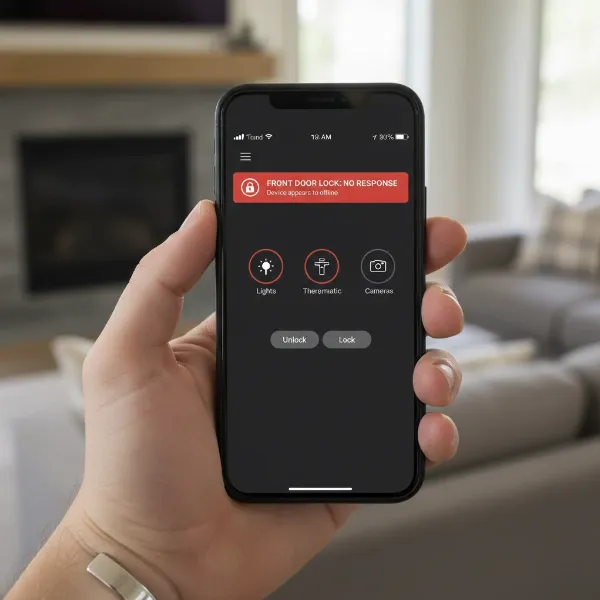 Smartphone displaying smart lock app with "Offline" or "No Response" error.
Mechanical and Installation Errors
While smart locks are electronic marvels, they still rely on physical mechanisms to secure your door. Mechanical problems can prevent the deadbolt from engaging or retracting, rendering the lock ineffective.
Signals: You might observe the deadbolt failing to extend or retract fully, often indicated by a red ‘X’ light and a tone on Schlage locks. A Yale lock showing “13579” often points to a jammed mechanism. Other signs include unusual grinding noises, resistance when manually operating the lock, or the door feeling stiff when locking/unlocking. Schlage’s E2 code specifically denotes a mechanical jam.
Meaning: These signals typically indicate a physical obstruction preventing the deadbolt from moving freely, a misalignment between the lock and the door frame, or wear and tear on the internal components. Poor initial installation can also lead to these issues over time.
Troubleshooting: First, check for any physical obstructions in the door frame or around the deadbolt. Ensure the door is properly aligned and closes smoothly without sticking. A misaligned strike plate can prevent the bolt from engaging. You can try lubricating the deadbolt mechanism with a graphite-based lubricant (avoid oil-based lubricants) if it feels stiff. If the problem persists after checking for obstructions and alignment, the issue might be internal mechanical failure, which often requires professional repair or replacement.
Programming and System Errors
Occasionally, a smart lock may encounter issues during the setup of new codes, settings, or due to general software glitches. These “system errors” can prevent features from being enabled or the lock from responding as expected.
Signals: General operational or programming errors might be indicated by three red flashes and three beeps (RemoteLock), or a red light for a programming error (Schlage). If a command at the keypad fails, you might see red lights and beeps. Sometimes, the lock may enter a programming mode unexpectedly, indicated by orange flashes.
Meaning: These signals suggest that a programming sequence was not completed successfully, there’s a conflict in settings, or a minor software bug is causing the lock to malfunction. This can happen when adding new user codes, changing security settings, or updating the lock’s configuration.
Troubleshooting: If you’re encountering programming errors, carefully re-read the instructions in your user manual for the specific function you are trying to perform. Ensure you are entering the correct master codes and following the sequence precisely. For persistent issues, a “soft reset” (which clears temporary glitches without deleting settings) or, as a last resort, a “factory reset” (which reverts the lock to its original state and deletes all user data) might be necessary. Always back up any important codes or settings before performing a factory reset.
Brand-Specific Error Codes and Troubleshooting Examples
While many issues are universal, some smart lock brands have their own unique error codes and indicators. Knowing these specifics can make troubleshooting even faster.
Yale Smart Lock Error Codes
Yale smart locks, a popular choice for home security, use a combination of audio and visual cues to alert users to problems. Understanding these specific signals is key to a swift resolution.
- 1 Buzz (Keypad): Indicates an incorrect access code was entered. Verify the code in your guest list or app.
- 2 Buzzes (Keypad): Signals a communication issue between your Yale Keypad and the smart lock. This often requires putting the keypad into setup mode and reconfiguring its connection.
- 7 Incorrect Entries: For security, entering an incorrect code seven times will trigger a 5-minute keypad lockout, where no further entries will be accepted.
- Steady Red LED + 5 Beeps: This is a clear low battery warning. Replace all four AA alkaline batteries immediately with new ones.
- “13579” Error (Nest Yale Lock): This error typically suggests a jammed lock mechanism or broader communication problems with the Nest Connect or network. Inspect the deadbolt for obstructions and check network connectivity.
- “T0xx” Codes (e.g., T003, T010, T026) & “Can’t find your Nest product” (Nest Yale Lock App): These indicate connectivity issues with the Nest Connect or your home Wi-Fi network. Basic troubleshooting involves factory resetting both the lock and Nest Connect, then re-pairing them. Ensure your Wi-Fi is stable and the devices are within range.
August Smart Lock Error Indicators
August Smart Locks are known for their ease of use, but their error indicators, particularly within the app, require specific attention.
- “Offline,” “No Response,” or “Error 401” (App): These messages commonly point to connectivity or authentication issues. Error 401, specifically, is often an authorization problem when logging in or resetting a password.
- Troubleshooting: For “Error 401,” ensure your account credentials are correct and your phone’s date/time settings are automatic. Try signing out of the August app and signing back in. For general “Offline” status, check Bluetooth pairing and Wi-Fi bridge (August Connect) status. Restarting the lock and app, and updating firmware, are also essential steps.
- 1 Beep (Keypad): An incorrect entry code was used. Double-check the code.
- 2 Beeps (Keypad): The keypad is not successfully connected to the door lock system. A reset of the keypad or re-pairing might be necessary.
- Flashing Red Light (LED Ring): Indicates a low battery level. Replace batteries promptly.
- Amber Light (LED Ring): Signals a critically low battery, which may prevent remote unlocking and other smart functions.
- Solid Red Light (LED Ring): Some models will show this, indicating that Bluetooth is disabled to conserve remaining battery power.
Schlage Smart Lock Error Codes
Schlage smart locks use distinct numeric error codes and LED flashes to convey problems, making them relatively straightforward to diagnose.
- E1: Low Battery. This is the most common issue.
- Troubleshooting: Replace all four batteries simultaneously with new AA alkaline batteries.
- E2: Mechanical Jam. Indicates that the deadbolt is obstructed or misaligned.
- Troubleshooting: Clear any physical obstructions around the deadbolt and ensure the door frame and strike plate are properly aligned. Lubricating the bolt might help.
- E3: Incorrect Code. An invalid access code was entered.
- Troubleshooting: Verify the access code and try again. If lockout occurs, wait the required period.
- E4: Network Connectivity Problems. Applies to smart models that connect to Wi-Fi.
- Troubleshooting: Check your home Wi-Fi connection, router status, and ensure the Schlage Home app is updated. Improve Wi-Fi signal strength if necessary.
- Red Light (Schlage Button): Can indicate a wrong user code, a programming error, or a low battery.
- Orange Light (Schlage Button): The lock is currently in programming mode.
- Red ‘X’ Light + Tone: The deadbolt could not fully extend, or an invalid access code was entered. Check for obstructions or re-enter the code.
- “Unreachable” Error (Schlage Encode Series App): This means the lock has lost connection to the Schlage cloud.
- Troubleshooting: Test your Wi-Fi connection and signal strength at the lock. Restart your router and perform a soft reset of the lock.
General Troubleshooting Steps for Any Smart Lock Error
When faced with a smart lock error, a systematic approach to troubleshooting can save time and frustration. While specific codes vary by brand, these universal steps can address many common problems.
- Check the Basics First: Begin by inspecting the most common culprits. Ensure the batteries are new and correctly installed, as low power is a frequent cause of malfunction. Also, physically inspect the door and frame for any obstructions that might prevent the deadbolt from moving freely.
- Restart Your Devices: A simple restart can resolve many temporary glitches. Power cycle your smart lock (usually by removing and reinserting the batteries), restart your smartphone, and if applicable, reboot your Wi-Fi router or smart home hub.
- Update Software and Firmware: Outdated mobile apps or lock firmware can lead to compatibility issues and bugs. Regularly check for and install the latest updates for your smart lock’s companion app and the lock’s firmware.
- Reset (Soft or Factory):
- Soft Reset: Many locks allow a soft reset that clears temporary memory without deleting user data. Consult your manual for instructions.
- Factory Reset: As a last resort, a factory reset will return the lock to its original settings, erasing all programmed codes and settings. This can fix deep-seated software issues but requires re-setup. Only do this if other steps fail and you have recorded all necessary information.
- Consult Your User Manual and Manufacturer Support: Your smart lock’s user manual is an invaluable resource, often containing a detailed list of error codes and specific troubleshooting steps for your model. If you’re still stuck, contact the manufacturer’s customer support; they can offer expert guidance or initiate a warranty claim.
Preventing Future Smart Lock Errors
Proactive measures can significantly reduce the likelihood of encountering smart lock errors, ensuring consistent reliability and security for your home. Simple maintenance and adherence to best practices go a long way in prolonging your lock’s lifespan and performance.
- Regular Maintenance is Key: Periodically replace your smart lock’s batteries, even before a low-battery warning appears, typically every 6-12 months depending on usage. Keep the keypad and any biometric sensors clean from dirt and grime, ensuring clear input and accurate readings.
- Keep Software Updated: Regularly check for and install firmware updates for your smart lock and updates for its companion app. These updates often include bug fixes, security enhancements, and performance improvements that can prevent future issues.
- Ensure a Stable Network Connection: For Wi-Fi or hub-connected smart locks, a strong and stable internet connection is vital. Position your router optimally, consider Wi-Fi extenders if necessary, and ensure no interference sources block the signal to your lock.
- Proper Installation Matters: Many mechanical and alignment issues stem from improper installation. If you installed it yourself, review the manual’s installation steps. If a professional installed it, ensure they followed best practices. Periodically check door alignment and deadbolt movement to catch potential problems early.
Conclusion
Understanding the common error codes and signals from your smart lock empowers you to quickly address issues, maintaining the safety and convenience of your home. From interpreting flashing lights and beeps to navigating app-specific alerts for battery depletion, connectivity woes, or mechanical jams, each signal is a clue to a solution. By familiarizing yourself with these indicators and following systematic troubleshooting, you can keep your smart lock functioning flawlessly. Proactive maintenance and regular software updates further ensure a secure and hassle-free smart home experience, allowing you to fully enjoy the peace of mind your smart lock provides.
Have you ever encountered a puzzling smart lock error that turned out to be a simple fix?
Frequently Asked Questions
My smart lock isn’t responding to any commands. What should I do first?
If your smart lock is completely unresponsive, the first step is to check and replace its batteries. Low or dead batteries are the most common cause of a non-responsive lock. After replacing them, try restarting your phone and the lock itself, then test its functionality.
Why is my August Smart Lock showing “Error 401” in the app?
An “Error 401” in the August app typically indicates an authorization issue, often related to your login credentials or account verification. Try signing out of the August app and signing back in. Ensure your account password is correct and your phone’s date and time settings are set to automatic.
What does a steady red light and five beeps mean on my Yale smart lock?
On a Yale smart lock, a steady red LED accompanied by five beeps is a critical low battery warning. You should immediately replace all existing batteries with new, high-quality AA alkaline batteries to prevent being locked out or experiencing further malfunctions.
My Schlage smart lock is displaying an “E2” error code. How do I fix this?
A Schlage smart lock displaying an “E2” error code indicates a mechanical jam. This means the deadbolt is likely obstructed or misaligned. Inspect the door and frame for anything blocking the deadbolt’s movement, ensure the strike plate aligns correctly, and clear any debris.
How often should I replace the batteries in my smart lock?
While battery life varies by usage and model, a general recommendation is to replace your smart lock batteries every 6 to 12 months. It’s best to do this proactively, rather than waiting for low battery warnings, to ensure continuous operation and avoid unexpected lockouts.
My smart lock constantly loses its Wi-Fi connection. What can I do to improve it?
To improve Wi-Fi connectivity for your smart lock, ensure your router is functioning optimally and positioned to provide a strong signal to the lock. Consider using a Wi-Fi extender if the lock is far from the router or if thick walls impede the signal. Also, check for and install any available firmware updates for your lock and app.
What’s the difference between a soft reset and a factory reset for a smart lock?
A soft reset typically restarts the lock’s system, clearing minor glitches and temporary errors without deleting any user-programmed settings or codes. A factory reset, however, restores the lock to its original out-of-the-box state, deleting all user data, including access codes and network configurations. A factory reset should be a last resort after other troubleshooting methods have failed.