Selling your smart lock might seem like a straightforward task, but there’s a crucial step many overlook: a thorough factory reset. Just like you’d wipe your smartphone before passing it on, your smart lock stores sensitive access data that needs to be completely erased. Neglecting this step can compromise your security and create headaches for the new owner. This guide will walk you through why a factory reset is non-negotiable, how to prepare, and provide general and brand-specific instructions to ensure a seamless and secure transition for your smart lock.
Why a Factory Reset is Essential When Selling Your Smart Lock
When you decide to sell your smart lock, performing a factory reset is more than just a recommendation; it’s a critical security measure. Your smart lock isn’t merely a piece of hardware; it’s a sophisticated device that holds a record of who can enter your home. Without a proper reset, the lock could retain old user codes, connectivity settings, and even links to your personal smart home ecosystem, creating significant privacy risks.
For you, the seller, a factory reset ensures that all your personal access codes, guest permissions, and activity logs are completely wiped. This prevents any unauthorized access to your previous property or personal data, protecting your privacy and giving you peace of mind. It severs any digital ties between you and the device, meaning you won’t inadvertently retain control or be held responsible for its future use.
For the new owner, receiving a factory-reset smart lock is crucial for a fresh start. It allows them to set up the device as if it were brand new, integrating it seamlessly into their own smart home system and programming their unique access codes. This eliminates potential conflicts, ensures proper functionality, and establishes trust. Ultimately, it’s about providing a clean slate for everyone involved, enhancing security, and facilitating a smooth transfer of ownership.
 Digital representation of a smart lock undergoing a secure data wipe for privacy
Preparation Before You Reset Your Smart Lock
Before you dive into the factory reset process, a few preparatory steps can save you time and prevent potential headaches. Taking these precautions ensures a smooth transition and helps you confirm that the reset is successful.
First and foremost, consult the user manual for your specific smart lock model. While this guide offers general and brand-specific advice, manufacturers often have unique reset procedures or specific requirements. The manual is your most reliable source for precise instructions, including the exact location of a reset button or specific button press sequences.
Next, it’s vital to unpair your smart lock from any associated smart home hubs or applications. If your lock is connected to an app like August, Yale Access, Samsung SmartThings, or Google Home, you typically need to remove the device from your account within the app first. This de-links the lock from your digital ecosystem and ensures that you no longer have remote access or control over it after the reset. Failing to unpair might leave residual connections or require the new owner to contact support to gain full control.
Finally, ensure your smart lock has adequate power. A power failure during a factory reset can lead to an incomplete reset or even brick the device. Replace weak or drained batteries with fresh ones before starting the process. This guarantees that the lock has enough power to complete the reset procedure without interruption. Once these preparations are complete, you’re ready to proceed with the reset itself.
General Steps to Factory Reset Most Smart Locks
While specific steps vary by brand and model, a fundamental understanding of the general factory reset process can guide you. Most smart locks follow a similar pattern, involving locating a reset mechanism and performing a sequence of actions.
The first universal step is to locate the reset button. This button is typically small and recessed, often requiring a paperclip or a thin tool to press. Common locations include:
- Inside the battery compartment: Many manufacturers place the reset button here, often beneath one of the batteries or along the edge.
- On the interior side of the lock: You might need to remove the interior cover of the lock to expose the circuit board or a dedicated reset button.
- On the back panel of the keypad: Some keypad-based locks have a reset option accessible from the interior side.
Once the reset button is located, the next step is to initiate the reset. This usually involves one of the following methods:
- Press and hold: For many locks, simply pressing and holding the reset button for a specific duration (e.g., 5, 10, or 30 seconds) will trigger the factory reset.
- Press and hold while reinstalling batteries: Some models require you to hold the reset button down while reinserting the batteries. You then release the button after the batteries are seated.
- Specific key sequence: Keypad-based locks might require entering a default factory code followed by a specific program button or sequence of key presses.
After performing the reset action, it’s important to verify that the reset was successful. The lock may emit a series of beeps, flash its lights, or go through a calibration sequence to indicate it has returned to its default factory settings. If you can still access the lock with previous codes or it reconnects to your app, the reset was not complete, and you should repeat the process or consult the manual.
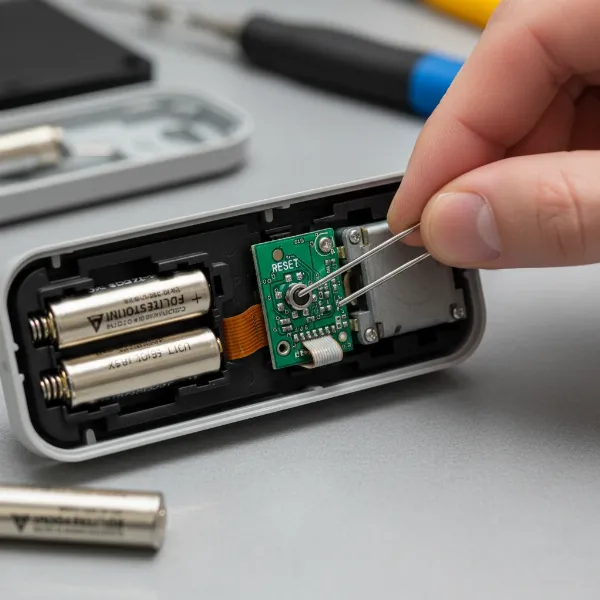 Close-up of a hand using a paperclip to press a small reset button on a smart lock
Brand-Specific Factory Reset Instructions
While the general steps provide a good starting point, many popular smart lock brands have unique procedures for factory resetting. Here’s how to tackle some of the most common ones:
August Smart Lock
|
Our Picks for the Best Smart Lock in 2026
As an Amazon Associate I earn from qualifying purchases.
|
||
| Num | Product | Action |
|---|---|---|
| 1 | ULTRALOQ U-Bolt Pro WiFi Smart Lock with Door Sensor, 8-in-1 Keyless Entry Door Lock with Fingerprint ID, App Remote Control, Built-in WiFi Keypad Deadbolt, Auto Unlock, IP65 Waterproof, Easy Install |

|
| 2 | TEEHO TE001 Keyless Entry Door Lock with Keypad - Smart Deadbolt Lock for Front Door with 2 Keys - Auto Lock - Easy Installation - Matte Black |
|
| 3 | eufy Security Smart Lock C220, Fingerprint Keyless Entry Door Lock, Built-in Wi-Fi, App Remote Control, Front Door Smart Deadbolt, IP53 Waterproof, 8-Months Battery, Nickel |
|
| 4 | TEEHO TE001 Keyless Entry Door Lock with Keypad - Smart Deadbolt Lock for Front Door with 2 Keys - Auto Lock - Easy Installation - Oil-Rubbed Bronze |
|
| 5 | Schlage Encode Smart WiFi Deadbolt Lock for Front Door - Keyless Entry with App or Touchscreen - Works with Alexa, Hey Google, & Airbnb - Create Codes for Guests - Matte Black |
|
| 6 | Philips Wi-Fi Door Lock, WiFi Smart Lock Keyless Entry Deadbolt for Front Door, Compatible with Alexa & Google Assistant, Remote Control, Built-in WiFi, APP Fingerprint Passcode Unlock, Auto Locking |
|
| 7 | Philips Wi-Fi Door Lock, WiFi Smart Lock Keyless Entry Deadbolt for Front Door, Remote Control, Built-in WiFi, APP Fingerprint Passcode Unlock, Auto Locking |
|
| 8 | TEEHO TE001 Keyless Entry Door Lock with Keypad - Smart Deadbolt Lock for Front Door with 2 Keys - Auto Lock - Easy Installation - Satin Nickel |
|
| 9 | Electronic Passwords Keyless Entry Door Locks Smart Deadbolt Metal Lock Auto Time Delay Locking Secure Durable Low Battery Alert Type-C Port for Emergency Charging |
|
| 10 | eufy Security Smart Lock C220, Fingerprint Keyless Entry Door Lock, Built-in Wi-Fi, App Remote Control, Front Door Smart Lock Deadbolt, 8Months Battery, Reliable Power, IP53 Waterproof, BHMA Grade 3 |
|
August smart locks are primarily app-driven, so the factory reset process typically starts within the August app.
- Open the August App: On your smartphone, navigate to the lock circle screen that displays your door’s locked/unlocked status.
- Access Settings: Tap on the “Settings” menu, usually represented by a gear icon.
- Select the Lock: Choose the specific August smart lock you wish to reset from your list of devices.
- Initiate Factory Reset: Scroll down to find the “Factory Reset” option.
- Confirm Reset: Tap “Reset Lock” and confirm your decision.
- Disconnect Keypad (if applicable): If you also have an August Smart Keypad, ensure it’s disconnected from the app while within Bluetooth range. Go to Keypad Settings, tap “Disconnect,” enter the send code, and press the August logo to complete.
It’s crucial to perform this process while within Bluetooth range of your lock for the reset to complete successfully.
Yale Smart Lock
Yale smart locks, particularly those integrated with the Yale Access app (formerly August Home), also offer an app-based reset, but also a physical reset for models without app integration or when the app is unavailable.
Using the Yale Access App:
- Remove from App: Open the Yale Access App and go to the lock circle screen. Select the “Settings” menu (gear icon), then choose the device. Scroll down and select “Factory Reset,” then “Reset Lock.” This removes the lock from your keychain.
- Physical Reset (for app-connected locks, often required after app removal): This step might be prompted by the app or needed as a separate physical action.
Physically Resetting a Yale Lock (without the app or as a secondary step):
- Remove Batteries: Take off the battery cover and remove all batteries.
- Access Reset Button: Remove the interior side of the lock to expose the reset button, often located beside the PCB (Printed Circuit Board) cable connector.
- Press and Reinstall: While continuously pressing the reset button (for a minimum of 3 seconds), reinstall the batteries.
- Release Button: Release the reset button once the batteries are in place.
- Replace Cover: Put the battery cover back on.
- Master Code Creation: Following a physical factory reset, you’ll typically need to create a new Master Entry Code before any other programming.
Schlage Smart Lock
Schlage smart locks often use a default programming code for a factory reset.
- Locate Default Code: Find the factory default programming code inside your user manual or on a sticker on the interior of the lock itself.
- Enter Sequence: On the keypad, enter the default programming code, followed by the program button (usually the “Schlage” button or a specific symbol).
- Initiate Reset: Follow the instructions in your manual for the specific sequence to initiate the reset, which often involves a specific number or sequence after the programming button. This will erase all user codes and restore settings.
Kwikset Smart Lock
Kwikset locks typically involve a physical reset button, sometimes combined with a code.
- Access Back Panel: Remove the battery cover and access the back panel of the lock.
- Locate Reset Button: Find the small reset button.
- Perform Reset: Press and hold the reset button for 30 seconds. Some Kwikset models might require entering a factory reset code on the keypad while holding the button.
- Reprogram: After the reset, you’ll need to follow the manual to reprogram the lock, setting up new codes.
For any other smart lock brands not listed, always prioritize consulting the user manual or visiting the manufacturer’s official support website for the most accurate and up-to-date factory reset instructions.
What Happens After a Factory Reset?
Understanding the impact of a factory reset can help you confirm its success and appreciate why it’s so vital before selling your smart lock. When you perform a factory reset, you’re essentially wiping the slate clean, reverting the device to its original, out-of-the-box state.
Primarily, all user codes and access methods are completely erased. This includes any key codes, fingerprint scans, RFID card credentials, or temporary guest access you may have programmed into the lock. No one, including you, will be able to unlock the door using previously registered credentials. This is fundamental for privacy and security.
Secondly, the smart lock will be disconnected from your Wi-Fi, Bluetooth, or any associated app and smart home hub. This means it will no longer communicate with your smartphone, smart speaker, or home automation system. It will appear as an unconfigured device, ready for a new owner to pair it with their own network and accounts. Your personal usage data, activity logs, and settings preferences are deleted.
Finally, the device’s internal settings are restored to their default factory values. Any custom configurations you’ve made, such as auto-lock timers, alarm sensitivities, or LED indicator behaviors, will be reset. The lock will be in its most basic operational mode, awaiting new programming. This ensures that the new owner experiences the lock as if it were brand new, without inheriting any of your customized (or potentially problematic) settings. In essence, a factory reset leaves your smart lock a blank canvas, perfectly prepared for its next chapter with a new user.
Troubleshooting Common Reset Issues
Even with clear instructions, you might encounter issues when trying to factory reset your smart lock. Here are some common problems and how to address them:
If your lock isn’t responding to the reset procedure, the first step is to double-check the power source. Ensure the batteries are fresh and correctly installed. A low battery can prevent the lock from performing the reset sequence properly. Also, meticulously re-read your user manual to confirm you’re following the exact button press duration or sequence required, as even a slight deviation can cause the reset to fail.
Another frequent issue is forgetting a default programming code or not being able to find it. This is especially common with keypad locks like Schlage or Kwikset, where a default code is often part of the reset process. If the code printed on the lock or in the manual isn’t working, it might have been changed previously. In such cases, you might need to try an alternative physical reset method (if available for your model) or proceed directly to contacting customer support. Some manufacturers have methods to help verify ownership and provide assistance.
Sometimes, the reset button isn’t easily found or doesn’t seem to exist. Again, the user manual is your best friend here, often providing diagrams or specific descriptions of the button’s location. For some very compact or aesthetically designed locks, the “reset button” might be a tiny hole requiring a paperclip, or the reset could be entirely app-based, with no physical button at all. Don’t assume there isn’t one; just ensure you’ve checked all potential spots, including behind the battery pack or internal cover plates.
If all troubleshooting steps fail, the most reliable course of action is to contact the manufacturer’s customer support. They have specialized knowledge for their products and can often walk you through advanced troubleshooting, or in rare cases, provide a remote solution. Be prepared to provide your lock’s model number and any error messages you’ve encountered.
What to Provide the New Owner About Accessories
When selling your smart lock, it’s not just about the device itself; the new owner will also need to understand what accessories are included and how they factor into the lock’s functionality. Clear communication about these components will ensure a smooth experience for the buyer.
First, be transparent about battery types and requirements. Smart locks rely heavily on specific battery chemistries, most commonly AA or AAA alkaline batteries. Inform the new owner about the correct type and quantity of batteries needed, and perhaps even include a fresh set to get them started. This seemingly small detail can prevent immediate frustration.
Second, if your smart lock requires a gateway, bridge, or smart home hub for full remote functionality (e.g., Wi-Fi connectivity, integration with Alexa or Google Assistant), make sure the new owner is aware. If you are including the gateway with the sale, ensure it is also factory reset and clearly labeled. If it’s not included, explain that it’s a separate purchase necessary for advanced features, so they understand the full cost and setup required.
Third, don’t forget any physical keys that might come with the smart lock. Many smart locks, especially deadbolt replacements, still include a traditional key override. Provide all original keys to the new owner, as these are crucial for manual access in case of battery failure or electronic malfunction.
Finally, it’s always helpful to provide a copy of the user manual, either the physical booklet or a link to its online PDF version. This invaluable resource will help the new owner with installation, programming new codes, and understanding all the lock’s features. By providing these details and accessories, you empower the new owner to fully utilize their smart lock from day one.
Conclusion
Successfully factory resetting your smart lock before selling it is an indispensable step that protects your privacy and ensures a positive experience for the new owner. By diligently preparing, following the general reset guidelines, and applying brand-specific instructions, you can confidently erase all personal data and settings. This crucial process transforms your used smart lock into a “blank slate,” ready to be securely integrated into its next home. Remember, a responsible seller always prioritizes security and convenience for both parties. So, before you hand over your smart lock, ensure it’s been properly reset and poised for a fresh start. Are you ready to make your smart lock sale as secure as possible?
Frequently Asked Questions
What does “factory reset” actually mean for a smart lock?
A factory reset returns your smart lock to its original, out-of-the-box condition, erasing all user codes, removing it from any connected apps or smart home hubs, and reverting all customized settings to their defaults. It’s like pressing a “reset” button for its entire digital memory.
Can I factory reset my smart lock without the original app or codes?
In many cases, yes. Most smart locks offer a physical reset method, often involving a button inside the battery compartment or on the interior assembly. However, specific steps vary by brand, so checking the manufacturer’s website or user manual for “manual factory reset” instructions is essential.
Does a factory reset delete the smart lock’s firmware or software updates?
No, a factory reset typically only wipes user data and settings. It does not revert the lock’s firmware or software to an older version. Any updates you’ve installed will usually remain, meaning the new owner will benefit from the latest improvements and security patches.
How do I know if the factory reset was successful?
After performing a reset, the lock usually gives an indication, such as a series of beeps, flashing lights, or a calibration sequence. The most definitive way to check is to try any old user codes – if they don’t work and the lock isn’t connected to your app, the reset was likely successful.
Is it really necessary to factory reset if I’m selling to a friend or family member?
Absolutely. Even if you trust the person, a factory reset ensures proper privacy and security. It prevents accidental access from old codes, allows them to set it up fresh, and avoids potential conflicts if they use a different smart home ecosystem. It’s best practice for anyone taking ownership of a device with stored access credentials.