In today’s connected world, smart locks have revolutionized home security, offering convenience, control, and, importantly, transparency. Beyond simply locking and unlocking your door, these intelligent devices maintain a detailed record of every interaction, often referred to as an activity log or access history. Understanding how to check these logs can provide invaluable insights into who enters and exits your property, offering enhanced security and unparalleled peace of mind.
Whether you’re a homeowner monitoring family arrivals, a landlord managing tenant access, or a business owner tracking employee entry, accessing your smart lock’s activity history is a straightforward process that puts you in control. This guide will walk you through the various methods to view your smart lock’s logs, explain the data you’ll find, address common issues, and offer tips to maximize the benefits of this powerful security feature.
What Are Smart Lock Logs and Why Are They Important?
Smart lock logs serve as a digital journal for your door, meticulously recording every event associated with its operation. Each time your smart lock is interacted with, it captures essential details, creating a comprehensive audit trail of activity. This record goes beyond a simple “locked” or “unlocked” status; it’s designed to answer the crucial questions: who, when, and how.
The information typically recorded in these logs includes the precise date and time of an event, the specific user who performed the action (if user profiles are configured), and the method used for entry or exit (e.g., PIN code, fingerprint, mobile app command, key card, or even a traditional key turn on some models). Some advanced logs may also note system events like tamper alerts, errors, or changes to privacy settings.
The importance of these logs cannot be overstated. From a security standpoint, they help you detect unusual activity or unauthorized access attempts. For convenience, parents can verify their children arrived home safely from school, and homeowners can confirm service providers like cleaners or pet sitters arrived as scheduled. Ultimately, smart lock logs transform the abstract concept of security into tangible, verifiable data, empowering you with greater control and confidence over your property’s access points.
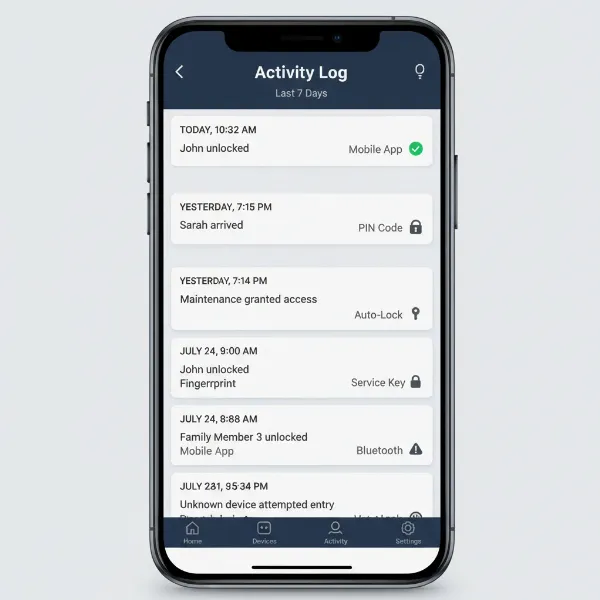 Smart lock activity log showing entries with user, date, time, and entry method for home security.
Methods to Access Your Smart Lock Activity Logs
Accessing your smart lock’s activity logs is typically a user-friendly process, primarily facilitated through dedicated mobile applications. However, depending on your smart lock brand and model, other options might be available.
Using Your Smart Lock’s Mobile App
|
Our Picks for the Best Smart Lock in 2026
As an Amazon Associate I earn from qualifying purchases.
|
||
| Num | Product | Action |
|---|---|---|
| 1 | TEEHO TE001 Keyless Entry Door Lock with Keypad - Smart Deadbolt Lock for Front Door with 2 Keys - Auto Lock - Easy Installation - Oil-Rubbed Bronze |

|
| 2 | Electronic Passwords Keyless Entry Door Locks Smart Deadbolt Metal Lock Auto Time Delay Locking Secure Durable Low Battery Alert Type-C Port for Emergency Charging |
|
| 3 | Philips Wi-Fi Door Lock, WiFi Smart Lock Keyless Entry Deadbolt for Front Door, Compatible with Alexa & Google Assistant, Remote Control, Built-in WiFi, APP Fingerprint Passcode Unlock, Auto Locking |
|
| 4 | TEEHO TE001 Keyless Entry Door Lock with Keypad - Smart Deadbolt Lock for Front Door with 2 Keys - Auto Lock - Easy Installation - Matte Black |
|
| 5 | Schlage Encode Smart WiFi Deadbolt Lock for Front Door - Keyless Entry with App or Touchscreen - Works with Alexa, Hey Google, & Airbnb - Create Codes for Guests - Matte Black |
|
| 6 | eufy Security Smart Lock C220, Fingerprint Keyless Entry Door Lock, Built-in Wi-Fi, App Remote Control, Front Door Smart Lock Deadbolt, 8Months Battery, Reliable Power, IP53 Waterproof, BHMA Grade 3 |
|
| 7 | TEEHO TE001 Keyless Entry Door Lock with Keypad - Smart Deadbolt Lock for Front Door with 2 Keys - Auto Lock - Easy Installation - Satin Nickel |
|
| 8 | Philips Wi-Fi Door Lock, WiFi Smart Lock Keyless Entry Deadbolt for Front Door, Remote Control, Built-in WiFi, APP Fingerprint Passcode Unlock, Auto Locking |
|
| 9 | ULTRALOQ U-Bolt Pro WiFi Smart Lock with Door Sensor, 8-in-1 Keyless Entry Door Lock with Fingerprint ID, App Remote Control, Built-in WiFi Keypad Deadbolt, Auto Unlock, IP65 Waterproof, Easy Install |
|
| 10 | eufy Security Smart Lock C220, Fingerprint Keyless Entry Door Lock, Built-in Wi-Fi, App Remote Control, Front Door Smart Deadbolt, IP53 Waterproof, 8-Months Battery, Nickel |
|
The most common and convenient way to check your smart lock’s logs is through its companion mobile application. Major brands like Yale, August, Schlage, Nuki, TT Smart Lock, SmartThings, and devices integrated with Apple Home all utilize dedicated apps.
To view your logs:
- Open the App: Launch the smart lock’s official app on your smartphone or tablet.
- Log In: Ensure you are logged into your administrator account.
- Select Your Lock: If you have multiple smart devices, select the specific lock you wish to monitor.
- Find the Logs Section: Look for a section often labeled “History,” “Activity Log,” “Usage Records,” “Access Logs,” or simply “Timeline” or “Events.” This is usually found on the main dashboard, within the lock’s settings, or via a menu icon.
- View Activity: Once in the logs section, you will see a chronological list of events. You can typically scroll through to view past activity, sometimes with options to filter by date or user.
Many apps offer a quick overview of recent events, often with color-coded indicators for different actions (e.g., green for unlocked, red for errors). Tapping on a specific day or event usually reveals more detailed information.
Utilizing Web Dashboards and Portals
For some smart lock systems, particularly those designed for larger properties, businesses, or advanced users, a web-based dashboard or online portal may be available. This method often provides a more comprehensive view of activity logs and can offer additional functionalities not found in the mobile app.
Benefits of a web dashboard include:
- Detailed Insights: A larger interface often allows for easier viewing of extensive log histories.
- Data Export: Some portals allow you to export activity data into formats like CSV, which can be useful for record-keeping, analysis, or integration with other systems. For example, August Smart Lock users can access a web portal to download their activity feed.
- Advanced Management: Web interfaces may offer more robust tools for managing user profiles, access schedules, and overall system settings.
To access:
- Visit the Official Website: Go to the smart lock manufacturer’s official website.
- Find Login Portal: Look for a “Login,” “My Account,” or “Admin Portal” link.
- Enter Credentials: Use your smart lock account credentials to log in.
- Navigate to Logs: Once logged in, find the activity or history section, which should display your lock’s detailed records.
Voice Assistant Integration
Some smart lock systems integrate with popular voice assistants like Amazon Alexa or Google Assistant. While not offering a detailed visual log, these integrations can provide quick, hands-free updates on recent activity.
You might ask commands such as:
- “Alexa, ask [Smart Lock Brand] who last unlocked the front door.”
- “Hey Google, what’s the history of my back door lock?”
The level of detail provided by voice assistants is typically limited to recent events and depends on the specific integration capabilities of your smart lock and the voice platform.
Understanding the Information in Your Smart Lock Logs
When you access your smart lock’s activity logs, you’ll find a wealth of information designed to give you a clear picture of who interacted with your door and when. Deciphering these entries is key to maximizing their value.
Date and Time Stamps
Every entry in your log will be time-stamped, indicating the exact date and time an event occurred. This precision is critical for tracking movements, confirming schedules, and investigating any suspicious activity. You’ll know precisely when a door was locked, unlocked, or if an attempt to enter was made.
User Identification
One of the most powerful features of smart lock logs is the ability to identify who performed an action. This is possible when you have set up unique user profiles within your smart lock app and assigned individual PIN codes, fingerprints, key cards, or digital keys to each user.
For example, if you’ve given “John” a specific PIN code and “Sarah” a different one, the log will show “John unlocked the front door” or “Sarah used her fingerprint.” If a generic code or unassigned method is used, the log might show “Guest Code used” or simply “Keypad entry.” To ensure accurate “who entered” information, it’s crucial to associate all access methods with named users in your app.
Method of Entry
The logs will typically specify how the door was accessed. This could include:
- PIN Code/Keypad: Indicates a numerical code was entered.
- Fingerprint: Shows biometric authentication was used.
- Mobile App: Denotes the lock was operated via a command from a smartphone app.
- Key Card/Fob: Used with locks that accept RFID cards.
- Auto-Lock/Auto-Unlock: Records automatic actions based on proximity or schedule.
- Manual Turn: Some advanced locks can detect if a physical key was used to lock or unlock the door.
Understanding the method of entry can help differentiate between planned access and unusual activity, especially if certain methods are only granted to specific individuals.
Lock/Unlock Status
The primary actions recorded are usually “Locked” and “Unlocked.” Some logs might also differentiate between “Manually Locked,” “Auto-Locked,” or “Locked by App,” providing further context. This helps you confirm not only entry but also that the door was secured afterward.
Other Events
Beyond basic access, smart lock logs can capture various other critical events, including:
- Privacy Mode Enabled/Disabled: Important for knowing when privacy settings are activated, which might prevent exterior access.
- Errors/Failed Attempts: Logs often record incorrect PIN entries, failed fingerprint scans, or other system errors, which can indicate attempted unauthorized access.
- Tamper Alerts: If your smart lock detects any physical tampering or forced entry attempts, this will be logged and often triggers an immediate notification.
- Firmware Updates/System Changes: Some logs record system maintenance or configuration changes, which can be useful for troubleshooting.
By diligently reviewing these various pieces of information, you can gain a comprehensive understanding of all activity at your smart lock, reinforcing your home’s security posture.
Common Challenges and Troubleshooting for Smart Lock Logs
While smart lock logs are generally reliable, users may occasionally encounter issues. Knowing how to address these common challenges ensures you get the most out of your security features.
Incomplete or Missing Logs
One of the most frustrating issues is discovering that your logs are incomplete or missing certain entries. This can often be attributed to:
- Network Connectivity Issues: Smart locks typically rely on a stable Wi-Fi or Bluetooth connection to send data to the app or cloud. A weak, intermittent, or disconnected network can prevent logs from updating in real-time or at all.
- Troubleshooting: Ensure your smart lock is within range of your Wi-Fi router or smart home hub. Check your home network for stability. Sometimes, simply reconfiguring the network settings for the door lock within the app can resolve the issue. If your lock uses Bluetooth, ensure your phone is close enough to sync.
- Synchronization Delays: Logs may not always update instantaneously. There might be a slight delay between an action at the door and its appearance in the app.
- Troubleshooting: Try refreshing the app or closing and reopening it. Wait a few minutes and check again. Some locks require manual synchronization from the app.
Limited Log Retention
Many smart locks, especially those not requiring a subscription, have a finite log retention period. This means older entries are automatically deleted or overwritten once a certain number of events or a specific time frame has passed. For instance, some systems might only store the last 7, 10, or 30 days of activity, or a maximum of a few hundred to a thousand entries.
- Troubleshooting: Be aware of your specific lock’s retention policy, which can usually be found in the product manual or support documentation. If long-term archival is critical, consider systems that offer extended cloud storage (often subscription-based) or allow for data export to be saved locally.
Ensuring User Identification
If your logs frequently show “Unknown User” or a generic entry like “Keypad Entry” when you expect a specific name, it’s usually an indication that user profiles are not properly configured.
- Troubleshooting:
- Create User Profiles: In your smart lock app, create distinct profiles for each individual who has access (family members, friends, service providers).
- Assign Unique Access Methods: Link a unique PIN code, fingerprint, or digital key to each user profile. Avoid giving multiple people the same code.
- Regular Review: Periodically review your user management settings to ensure all access methods are correctly assigned and revoke access for anyone no longer needing it.
App or Firmware Glitches
Occasionally, issues with the smart lock app or the lock’s firmware can cause logging problems.
- Troubleshooting:
- Update App: Ensure your smart lock app is updated to the latest version available in your device’s app store.
- Update Firmware: Check for and install any available firmware updates for your smart lock. These often include bug fixes and performance improvements.
- Reinstall App: If persistent issues occur, try uninstalling and reinstalling the smart lock app.
- Contact Support: If problems persist, reach out to your smart lock manufacturer’s customer support for specialized assistance.
By proactively addressing these common issues, you can maintain an accurate and reliable activity log, ensuring your smart lock provides the security and transparency you expect.
Maximizing the Security and Convenience of Smart Lock Logs
Beyond simply checking them, there are several ways to leverage your smart lock logs to their full potential, enhancing both security and everyday convenience.
Setting Up Notifications and Alerts
Many smart lock apps allow you to configure push notifications for specific events. This is arguably the most proactive way to utilize your logs, providing real-time awareness rather than requiring manual checks. You can customize alerts to:
- Know When Someone Enters/Exits: Receive an alert when a specific user (e.g., your child returning from school) unlocks the door.
- Detect Failed Attempts: Get notified if someone tries to enter with an incorrect code multiple times, signaling potential unauthorized access.
- Monitor Tampering: Immediate alerts for any physical attacks or forced entry attempts on the lock.
- Confirm Deliveries: If you grant temporary access to a delivery service, get an alert when they use their code.
By tailoring these notifications, you can stay informed about critical events without constantly monitoring the app.
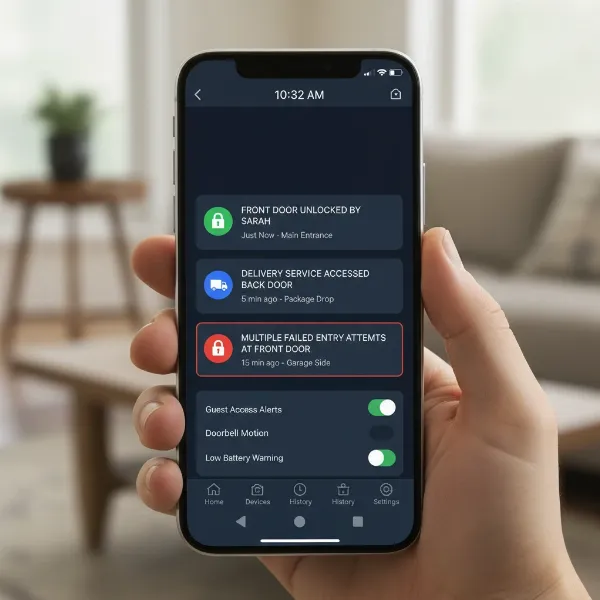 Smartphone showing smart lock app with real-time notifications for entry and exit events.
Regularly Reviewing Logs
While real-time alerts are excellent for immediate concerns, a periodic review of your full activity log can reveal patterns or provide a broader understanding of traffic through your door.
- Spotting Unusual Patterns: A quick weekly or monthly review can help you identify times when the door is used unexpectedly or by unknown methods.
- Verifying Access Schedules: If you’ve set up timed access for certain users, reviewing logs ensures these schedules are being adhered to.
- Troubleshooting: Regular checks can help you catch inconsistencies or incomplete logging early, prompting you to troubleshoot before critical information is lost.
Make it a routine to scan your logs, even if just for a few minutes, to maintain a clear picture of your property’s security.
Educating Household Members
For multi-user environments like families or shared homes, educating everyone about how the smart lock works and the importance of using their unique access methods is crucial.
- Assign Unique Codes/Fingerprints: Reiterate the need for each individual to use their assigned PIN, fingerprint, or digital key to ensure accurate user identification in the logs.
- Explain Log Benefits: Help them understand that logs are not just for “spying” but for ensuring everyone’s safety and accountability.
- Correct Usage: Teach them how to correctly operate the lock, including double-checking that it’s properly secured upon leaving.
When everyone uses the smart lock as intended, the activity logs become a much more powerful and reliable tool for everyone’s benefit.
Integrating with Smart Home Systems
For advanced users, integrating your smart lock with a broader smart home ecosystem (like Apple HomeKit, Google Home, Amazon Alexa, or SmartThings) can unlock even greater capabilities.
- Automated Responses: Set up routines where certain log events trigger other smart home actions. For example, when “User A” unlocks the door, the lights turn on, and the thermostat adjusts.
- Centralized Monitoring: View smart lock activity alongside other security sensors (e.g., door/window sensors, motion detectors) in a single smart home app, providing a more holistic security overview.
- Enhanced Data Logging: Some smart home hubs may offer more extensive data logging or integration with third-party logging applications, potentially extending retention periods or providing more analytical tools than the lock’s native app.
By actively engaging with your smart lock’s logging features and integrating them into your daily routines and smart home setup, you transform a passive record into an active component of your comprehensive security strategy.
Conclusion
Smart lock logs are an indispensable feature that elevates home security beyond traditional measures. By providing a clear, digital record of who enters and exits your property, when, and how, they offer unparalleled transparency and control. Whether accessed via a convenient mobile app, a detailed web dashboard, or even a quick voice command, understanding and regularly reviewing these logs empowers you to maintain a secure environment, track daily movements, and enjoy genuine peace of mind.
From setting up personalized user profiles to configuring real-time alerts and troubleshooting common issues, mastering your smart lock’s activity history is a vital step in harnessing the full potential of your smart home security system. Are you making the most of your smart lock’s ability to tell you who entered?
Frequently Asked Questions
How far back do smart lock logs typically go?
The retention period for smart lock logs varies significantly by brand and model. Many consumer-grade locks store between 7 to 30 days of activity. Some may store a certain number of entries (e.g., 300 to 1000 events) before overwriting the oldest data. Premium models or those with cloud subscriptions may offer longer or even indefinite storage. Always check your lock’s specifications for exact details.
Can I download or export my smart lock’s activity history?
Some smart lock systems, particularly those with web-based dashboards or advanced administrative features, do allow you to download or export your activity logs. This is often available in a CSV file format, which can be useful for long-term record-keeping or detailed analysis. Check your specific smart lock’s app or web portal for an “export” or “download data” option.
What if my smart lock logs show “unknown user”?
If your logs display “unknown user” or a generic entry, it typically means the access method used (e.g., a PIN code, fingerprint, or key card) has not been assigned to a specific user profile within your smart lock app. To fix this, create individual user profiles in the app and link each unique access method to the corresponding person. This ensures accurate identification in future log entries.
Do all smart locks have an activity log feature?
While most modern smart locks designed for residential use offer some form of activity logging, the depth and detail of these logs can vary. Basic models might only record simple “locked/unlocked” events, while advanced models track specific users, entry methods, and even tamper alerts. Always confirm this feature and its capabilities before purchasing a smart lock if activity tracking is a priority for you.
How can I improve the accuracy of my smart lock logs?
To improve log accuracy, ensure your smart lock has a stable connection to your home network or hub. Regularly update your lock’s firmware and the companion mobile app. Crucially, create unique user profiles for everyone with access and assign them distinct PINs, fingerprints, or digital keys, avoiding shared access methods. Also, periodically review your logs and troubleshoot any inconsistencies promptly.