Smart locks offer unparalleled convenience, transforming the way we secure our homes. The ability to enter with a fingerprint, a code, or even just our smartphone eliminates the jingle of keys and the worry of losing them. However, with this technological advancement comes a unique concern: what happens if your smart lock’s battery dies while you’re standing outside, unable to get in? That moment of panic is something no homeowner wants to experience. Fortunately, modern smart locks are designed with various backup mechanisms to prevent such a scenario from leaving you stranded. This comprehensive guide will walk you through the essential steps and solutions to regain access to your home, ensuring you’re always prepared for a dead smart lock battery.
Understanding Your Smart Lock’s Lifeline: Battery Health
Before diving into solutions, it’s crucial to understand how your smart lock communicates its battery status. Most smart locks are “smart” enough to warn you long before their power completely depletes. These warnings typically come in several forms:
- Audible Alerts: A series of beeps or a specific sound pattern when you operate the lock can indicate low battery.
- Visual Indicators: Many locks feature LED lights that change color (e.g., from green to yellow or red) or flash when the battery is running low. Touchscreens might display a battery icon.
- Smartphone Notifications: If your smart lock is connected to a mobile app, it will often send push notifications directly to your phone, alerting you to a low battery status.
Ignoring these warnings is the primary reason people find themselves locked out. Smart lock batteries generally last between 6 to 12 months, though heavy usage, Wi-Fi connectivity, and extreme temperatures can accelerate depletion. A “dead” battery often means the electronic components lack sufficient power to perform their functions, but typically, there’s a reserve for emergency power.
Immediate Solutions for a Dead Smart Lock Battery
When faced with a dead smart lock, panic is your worst enemy. Stay calm and systematically try the following methods.
The Lifesaving Physical Backup Key
|
Our Picks for the Best Smart Lock in 2026
As an Amazon Associate I earn from qualifying purchases.
|
||
| Num | Product | Action |
|---|---|---|
| 1 | TEEHO TE001 Keyless Entry Door Lock with Keypad - Smart Deadbolt Lock for Front Door with 2 Keys - Auto Lock - Easy Installation - Satin Nickel |

|
| 2 | Schlage Encode Smart WiFi Deadbolt Lock for Front Door - Keyless Entry with App or Touchscreen - Works with Alexa, Hey Google, & Airbnb - Create Codes for Guests - Matte Black |
|
| 3 | Philips Wi-Fi Door Lock, WiFi Smart Lock Keyless Entry Deadbolt for Front Door, Remote Control, Built-in WiFi, APP Fingerprint Passcode Unlock, Auto Locking |
|
| 4 | TEEHO TE001 Keyless Entry Door Lock with Keypad - Smart Deadbolt Lock for Front Door with 2 Keys - Auto Lock - Easy Installation - Oil-Rubbed Bronze |
|
| 5 | eufy Security Smart Lock C220, Fingerprint Keyless Entry Door Lock, Built-in Wi-Fi, App Remote Control, Front Door Smart Lock Deadbolt, 8Months Battery, Reliable Power, IP53 Waterproof, BHMA Grade 3 |
|
| 6 | eufy Security Smart Lock C220, Fingerprint Keyless Entry Door Lock, Built-in Wi-Fi, App Remote Control, Front Door Smart Deadbolt, IP53 Waterproof, 8-Months Battery, Nickel |
|
| 7 | TEEHO TE001 Keyless Entry Door Lock with Keypad - Smart Deadbolt Lock for Front Door with 2 Keys - Auto Lock - Easy Installation - Matte Black |
|
| 8 | ULTRALOQ U-Bolt Pro WiFi Smart Lock with Door Sensor, 8-in-1 Keyless Entry Door Lock with Fingerprint ID, App Remote Control, Built-in WiFi Keypad Deadbolt, Auto Unlock, IP65 Waterproof, Easy Install |
|
| 9 | Electronic Passwords Keyless Entry Door Locks Smart Deadbolt Metal Lock Auto Time Delay Locking Secure Durable Low Battery Alert Type-C Port for Emergency Charging |
|
| 10 | Philips Wi-Fi Door Lock, WiFi Smart Lock Keyless Entry Deadbolt for Front Door, Compatible with Alexa & Google Assistant, Remote Control, Built-in WiFi, APP Fingerprint Passcode Unlock, Auto Locking |
|
The most reliable and often overlooked solution is the good old physical key. Despite all the smart features, the vast majority of smart locks still include a traditional keyhole as a failsafe.
How to Use It:
- Locate the Keyhole: On many smart locks, the keyhole might be hidden beneath a removable cover, a rotating panel, or discreetly integrated into the design to maintain aesthetics. Consult your lock’s user manual if you can’t find it immediately.
- Unlock Manually: Once located, simply insert your backup physical key and turn it to unlock the deadbolt, just as you would with a traditional lock.
It is absolutely essential to store this backup physical key in a secure, yet accessible, location outside your home. This could be a locked key box, with a trusted neighbor, or in your car. Never keep it inside, as that defeats its purpose as an emergency override.
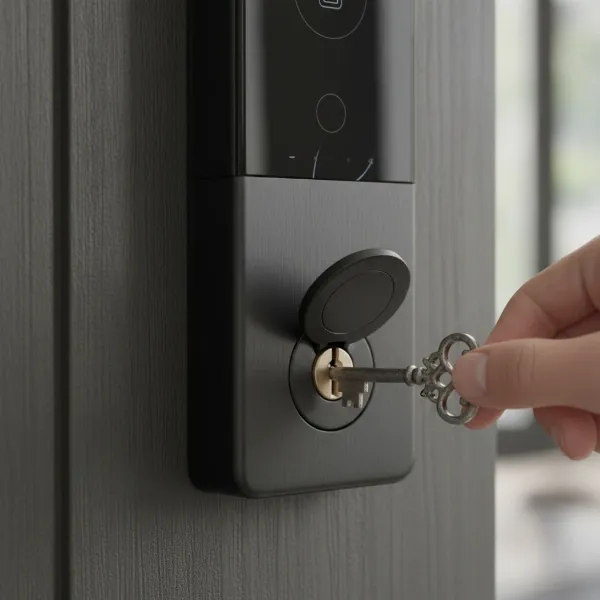 Hand using a physical key to manually unlock a smart lock during a battery emergency.
Emergency Power with a 9V Battery
Many electronic and smart locks, particularly older models or those without USB ports, feature external terminals designed for a standard 9V battery. This method provides a temporary power boost to activate the keypad or unlock mechanism.
How it Works:
- Locate Terminals: Look for two small metal contacts, usually on the bottom or side of the exterior unit, near the keypad or beneath a cover. They might be labeled with ‘+’ and ‘-‘ symbols.
- Apply 9V Battery: Take a standard 9V battery and hold its positive and negative terminals against the corresponding contacts on your smart lock. There’s usually no specific polarity, so holding it either way should work.
- Provide Temporary Power: Keep the 9V battery firmly in place. You should hear a chime, see lights illuminate on the keypad, or the lock’s screen activate.
- Enter Code/Use Fob: While holding the 9V battery, quickly enter your access code, use your fingerprint, or scan your fob to unlock the door. The temporary power is just enough to get the system running for a few seconds.
This method is incredibly effective and a common feature for good reason. It’s wise to keep a fresh 9V battery in your car or purse for such emergencies.
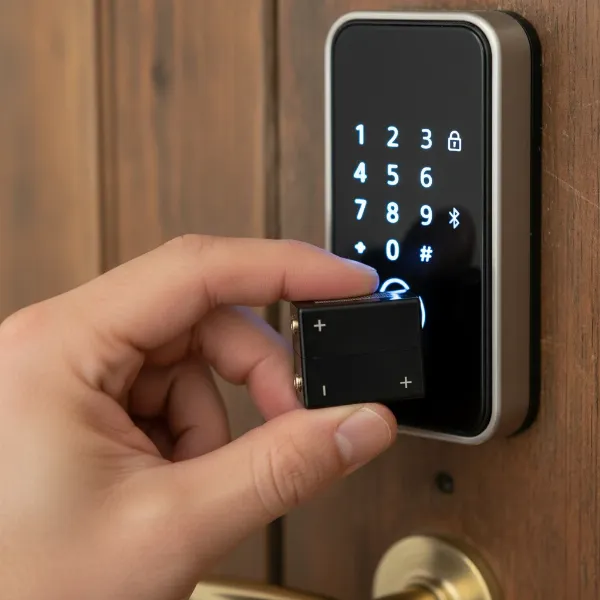 Hand holding a 9V battery against emergency power terminals on a smart lock.
USB Power Bank for Modern Smart Locks
As technology evolves, so do backup power options. Many newer smart lock models, such as the Philips 7300 and others, come equipped with a micro-USB or USB-C port. This allows you to use a common power bank, like the one you use for your smartphone, to provide emergency power.
How to Use It:
- Locate USB Port: The USB port is usually found on the exterior side of the lock, often discreetly covered by a small rubber flap or integrated into the design.
- Connect Power Bank: Plug your power bank into the smart lock’s USB port using a compatible cable (micro-USB or USB-C).
- Activate Lock: The power bank will supply temporary power to the lock, allowing the keypad or fingerprint reader to activate.
- Enter Credentials: Use your usual access method (code, fingerprint, app) to unlock the door while the power bank is connected.
Carrying a compact power bank with both micro-USB and USB-C cables is a smart move for any tech-savvy homeowner, ensuring you’re prepared for your smart lock and other devices.
Can You Replace Batteries from the Outside?
While less common, some smart lock designs allow for battery replacement from the exterior. This is usually seen in locks where the main battery compartment is easily accessible without needing to remove the entire internal assembly.
How to Check:
- Consult Manual: Your user manual will specify if external battery replacement is an option and how to access the compartment.
- Tools: Typically, this might involve unscrewing a small panel with a screwdriver.
- Replace Batteries: Once open, replace the old batteries with fresh ones of the correct type (e.g., AA, AAA, or C batteries, depending on your model).
If this is an option for your lock, it’s a convenient solution. However, many locks require access to the interior side for battery replacement to enhance security.
The Locksmith Option
If all else fails, or if your lock has an unusual malfunction not related to power, it’s time to call a professional locksmith. They have specialized tools and expertise to open locks without causing damage, which is crucial for maintaining your door’s integrity and your smart lock’s warranty. While this should be a last resort, it’s a reliable backup when all other methods have been exhausted.
Preventing Future Lockouts: Best Practices
Prevention is always better than cure, especially when it comes to home security and access. Adopting a few simple habits can save you a lot of stress.
- Regular Battery Checks and Replacement Schedule: Don’t wait for the low battery warning. Mark your calendar to replace batteries every 6-12 months, even if they seem fine. For high-traffic doors, consider replacing them more frequently.
- Keep Spare Batteries: Store the correct type of spare batteries (AA, AAA, C, or 9V) in an easily accessible location outside your home, such as your car’s glove compartment or a secure outdoor shed.
- Strategic Storage of Backup Keys: As mentioned, your physical key is your ultimate failsafe. Ensure it’s stored securely and discreetly outside, known only to trusted individuals. Avoid obvious hiding spots.
- Monitor Low Battery Alerts: Pay attention to any audible or visual warnings from your lock, and respond to app notifications promptly. These warnings are designed to give you ample time to act before a complete power failure.
- Read Your User Manual: Familiarize yourself with all the emergency override procedures specific to your smart lock model. Every lock can have slightly different features and access points.
Choosing a Reliable Smart Lock with Robust Backup Options
When selecting a smart lock, convenience and security are paramount, but don’t overlook the importance of reliable backup options. Look for models that offer:
- Physical Key Override: This is non-negotiable for true peace of mind.
- External Power Terminals (9V or USB): These provide invaluable emergency access when electronic components are unresponsive due to a dead battery.
- Clear Low Battery Indicators: Visible and audible warnings, combined with app notifications, are essential for proactive maintenance.
- Reputable Brands: Brands known for quality and customer support are more likely to offer well-designed backup mechanisms and clear instructions.
Investing in a smart lock that prioritizes these backup features will ensure that the smart convenience never turns into a frustrating lockout experience.
Conclusion
The convenience and enhanced security offered by smart locks are undeniable, making them a popular choice for modern homes. While the thought of a dead battery leaving you locked out can be daunting, understanding the emergency access options available is key to maintaining your peace of mind. From the tried-and-true physical backup key to innovative emergency power solutions like 9V battery terminals and USB ports, most smart locks are designed to prevent you from ever being truly stranded. By staying informed, conducting regular maintenance, and having a plan, you can enjoy all the benefits of your smart lock without the worry. Don’t let a simple battery issue diminish the appeal of smart home technology – be prepared, and you’ll always have a way back in.
Are you fully prepared for a smart lock battery emergency?
Frequently Asked Questions
How often should I change smart lock batteries?
Most smart lock manufacturers recommend replacing batteries every 6 to 12 months, or immediately upon receiving a low battery alert. Factors like usage frequency, Wi-Fi connectivity, and extreme temperatures can affect battery life, so proactive replacement is always best practice.
Where are the 9V battery terminals on my smart lock?
The 9V battery terminals are typically small metal contacts located on the exterior of your smart lock, often on the bottom edge, side, or sometimes hidden under a small cover near the keypad. Consult your specific smart lock’s user manual for the exact location.
Are all smart locks equipped with a physical key override?
While the vast majority of smart locks include a physical key override as a crucial failsafe, it’s not a universal feature for every single model, especially some minimalist designs. Always verify this feature before purchasing a smart lock to ensure you have a reliable mechanical backup.
Can my smart lock still work if Wi-Fi is down and batteries are low?
If your smart lock’s batteries are completely dead, neither Wi-Fi nor local electronic functions (like keypads or fingerprint readers) will work, regardless of Wi-Fi status. Backup methods like physical keys or external emergency power (9V or USB) are then necessary. Low battery warnings, however, usually function independently of Wi-Fi.
What type of batteries do smart locks use?
Smart locks commonly use standard alkaline batteries such as AA, AAA, or C cells. Some models may use 9V batteries for their primary power, or as an emergency power source. Always check your smart lock’s user manual to confirm the specific battery type required for optimal performance.
