Smart locks offer unparalleled convenience, but a lost Wi-Fi connection can quickly turn that convenience into frustration. When your smart lock goes offline or refuses to connect, it can disrupt your smart home ecosystem and prevent remote access. Understanding the common culprits and knowing the right troubleshooting steps can help you get your smart lock back online quickly.
Why Your Smart Lock Might Be Disconnecting
Several factors can lead to your smart lock losing its Wi-Fi connection:
- Weak Wi-Fi Signal: Smart locks are often installed on exterior doors, which might be far from your main router. Thick walls, metal doors, and other obstructions can significantly weaken the Wi-Fi signal.
- Router Distance and Placement: If your router is too far from the lock, or its signal is obstructed, connectivity can suffer. Wi-Fi signals degrade with distance and through physical barriers.
- Low Battery Levels: Smart locks rely on battery power to maintain their Wi-Fi connection. When batteries are low, many devices prioritize essential functions and may disable Wi-Fi to conserve power.
- Network Overload: A crowded home network with numerous connected devices can lead to bandwidth congestion, causing intermittent drops for less prioritized devices like smart locks.
- Incorrect Wi-Fi Band: Most smart locks operate exclusively on the 2.4GHz Wi-Fi frequency band, not the faster 5GHz band. If your router is configured to only broadcast 5GHz or automatically switches bands, your lock might struggle to connect.
- Firmware or App Glitches: Outdated firmware on the lock itself or an old version of the companion mobile app can introduce bugs that affect connectivity.
- Network Changes: If you’ve changed your Wi-Fi network name (SSID) or password, your smart lock will need to be reconfigured.
- Interference: Other wireless devices like microwaves, cordless phones, baby monitors, or even neighboring Wi-Fi networks can cause interference on the 2.4GHz band.
- Power Interruptions: Recent power outages can cause your router and smart lock to restart asynchronously, leading to temporary disconnection.
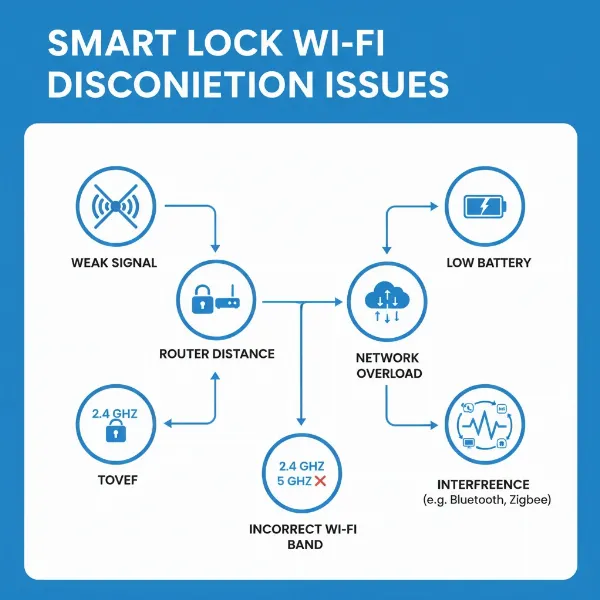 Infographic showing various reasons for a smart lock losing Wi-Fi connection.
Step-by-Step Troubleshooting for Wi-Fi Connectivity
Follow these steps to diagnose and resolve your smart lock’s Wi-Fi connection issues:
1. Check Your Wi-Fi Network
First, confirm that your home Wi-Fi network is functioning correctly.
- Test Other Devices: Ensure other devices like your smartphone or laptop can connect to the internet via Wi-Fi.
- Reboot Your Router and Modem: A simple power cycle of your router and modem can often resolve minor network glitches. Unplug them, wait about 30 seconds, then plug them back in. Allow a few minutes for them to fully restart.
- Verify Router Settings: Log into your router’s settings to confirm it’s broadcasting a 2.4GHz network. Ensure the network is not hidden and uses WPA2 or WPA3 security protocol. Smart locks typically do not support 5GHz networks. If you have a dual-band router, consider separating the 2.4GHz and 5GHz bands into distinct network names (SSIDs).
|
Our Picks for the Best Smart Lock in 2026
As an Amazon Associate I earn from qualifying purchases.
|
||
| Num | Product | Action |
|---|---|---|
| 1 | Philips Wi-Fi Door Lock, WiFi Smart Lock Keyless Entry Deadbolt for Front Door, Compatible with Alexa & Google Assistant, Remote Control, Built-in WiFi, APP Fingerprint Passcode Unlock, Auto Locking |

|
| 2 | ULTRALOQ U-Bolt Pro WiFi Smart Lock with Door Sensor, 8-in-1 Keyless Entry Door Lock with Fingerprint ID, App Remote Control, Built-in WiFi Keypad Deadbolt, Auto Unlock, IP65 Waterproof, Easy Install |
|
| 3 | Philips Wi-Fi Door Lock, WiFi Smart Lock Keyless Entry Deadbolt for Front Door, Remote Control, Built-in WiFi, APP Fingerprint Passcode Unlock, Auto Locking |
|
| 4 | TEEHO TE001 Keyless Entry Door Lock with Keypad - Smart Deadbolt Lock for Front Door with 2 Keys - Auto Lock - Easy Installation - Matte Black |
|
| 5 | eufy Security Smart Lock C220, Fingerprint Keyless Entry Door Lock, Built-in Wi-Fi, App Remote Control, Front Door Smart Deadbolt, IP53 Waterproof, 8-Months Battery, Nickel |
|
| 6 | eufy Security Smart Lock C220, Fingerprint Keyless Entry Door Lock, Built-in Wi-Fi, App Remote Control, Front Door Smart Lock Deadbolt, 8Months Battery, Reliable Power, IP53 Waterproof, BHMA Grade 3 |
|
| 7 | TEEHO TE001 Keyless Entry Door Lock with Keypad - Smart Deadbolt Lock for Front Door with 2 Keys - Auto Lock - Easy Installation - Satin Nickel |
|
| 8 | TEEHO TE001 Keyless Entry Door Lock with Keypad - Smart Deadbolt Lock for Front Door with 2 Keys - Auto Lock - Easy Installation - Oil-Rubbed Bronze |
|
| 9 | Schlage Encode Smart WiFi Deadbolt Lock for Front Door - Keyless Entry with App or Touchscreen - Works with Alexa, Hey Google, & Airbnb - Create Codes for Guests - Matte Black |
|
| 10 | Electronic Passwords Keyless Entry Door Locks Smart Deadbolt Metal Lock Auto Time Delay Locking Secure Durable Low Battery Alert Type-C Port for Emergency Charging |
|
2. Assess Wi-Fi Signal Strength and Placement
The distance and obstructions between your smart lock and router are critical.
- Check Signal at the Lock: Use your smartphone to check the Wi-Fi signal strength near your smart lock. A weak signal on your phone indicates the lock is likely also struggling.
- Relocate Your Router: If possible, move your router closer to the smart lock. Ideally, the router should be within 15-30 feet of the lock, with minimal obstructions.
- Consider a Wi-Fi Extender: If relocating the router isn’t feasible and the signal is weak, a Wi-Fi extender or repeater placed between the router and the lock can boost the signal strength.
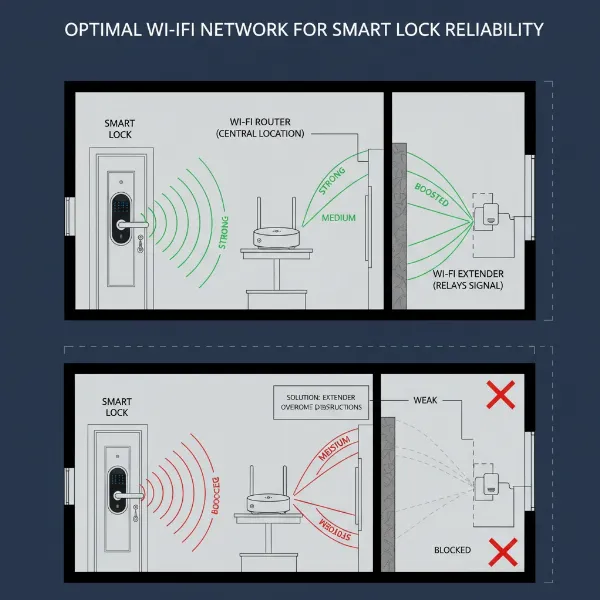 Diagram illustrating how to improve smart lock Wi-Fi signal strength.
3. Inspect Your Smart Lock’s Power and Status
- Check Battery Levels: Low battery is a frequent cause of connectivity problems. Replace the batteries with fresh ones, even if the lock is still functioning locally, as Wi-Fi communication requires more power. Many smart locks provide low battery alerts in their app.
- Reboot the Smart Lock: Power cycle your smart lock. This usually involves removing the battery pack for a few seconds and then reinserting it. For some models, there might be a dedicated power button or a specific sequence to press.
4. Reconnect or Reset the Smart Lock
If the above steps don’t work, you may need to re-establish the connection.
- Reconfigure Wi-Fi via App: Open your smart lock’s companion app. Look for “Wi-Fi Settings” or a similar option within the lock’s device settings. Follow the on-screen prompts to reconnect to your home network, ensuring you enter the correct Wi-Fi password.
- Perform a Network Reset: If your Wi-Fi credentials have changed, you will likely need to perform a network reset on the lock. Consult your smart lock’s manual for specific instructions on how to do this, as the process varies by brand.
- Hard Reset (Factory Reset): As a last resort, if all other steps fail, you might need to perform a factory reset on your smart lock. This will erase all settings and data, requiring you to set up the lock from scratch. Follow the manufacturer’s instructions carefully to avoid damaging the device.
5. Update Software and Firmware
Ensure all relevant software is up to date.
- Update Smart Lock App: Check your phone’s app store for any available updates for your smart lock’s companion app.
- Update Lock Firmware: Within the smart lock app, check for any available firmware updates for the lock itself. Manufacturers regularly release updates to fix bugs and improve performance.
- Update Router Firmware: Outdated router firmware can also cause connectivity issues. Check your router manufacturer’s website for any available updates.
6. Minimize Interference
Identify and reduce potential sources of interference.
- Identify Competing Devices: Devices operating on the 2.4GHz band, such as microwaves, cordless phones, and older baby monitors, can interfere with Wi-Fi signals.
- Adjust Device Placement: Try moving these devices further away from your smart lock or router to see if the connection improves.
When to Contact Support
If you’ve followed all the troubleshooting steps and your smart lock still won’t connect to Wi-Fi, it might indicate a deeper hardware issue. At this point, it’s best to contact the customer support team for your smart lock’s manufacturer. They can offer more advanced troubleshooting specific to your model or advise on potential replacements if the device is defective.